- RHEL supports seven types of files:
- Regular
- Directory
- Block special device → Used by the OS to communicate with peripheral devices.
- character special device → Used by the OS to communicate with peripheral devices.
- symbolic link
- named pipe → Used in
IPC(Inter Process Communication) - socket → Used in
IPC(Inter Process Communication)
Regular Files:
Regular filesmay contain text or binary data. These files may be shell scripts or commands in the binary form. When you list a directory, all line entries for files in the output that begin with thehyphen character (-)represent regular files.- Example:

- The
-before therwpermission depicts that it is a regular file.
- Example:
filecommand: Returns the specific type of data that the file contains, in this case it’s ASCII text.
statcommand: It simply states that the file is a regular file.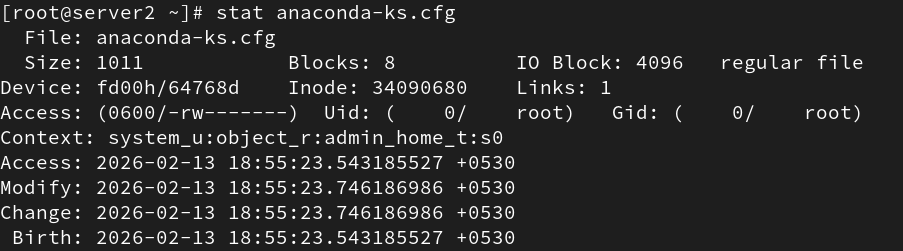
Directory Files:
- Directories are logical containers that hold files and subdirectories.
- The letter
“d”at the beginning of each line entry identifies the file as a directory.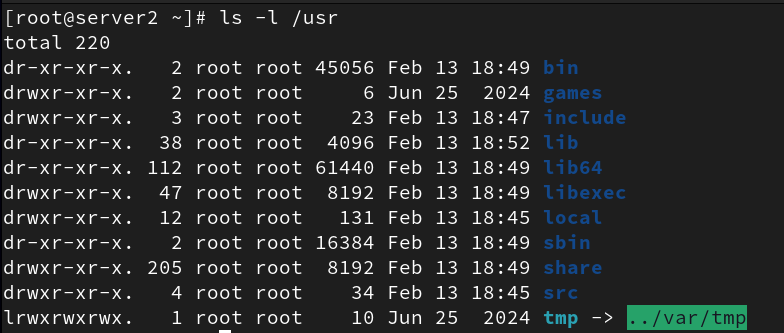
filecommand on/usrdirectory:
statcommand on/usrdirectory: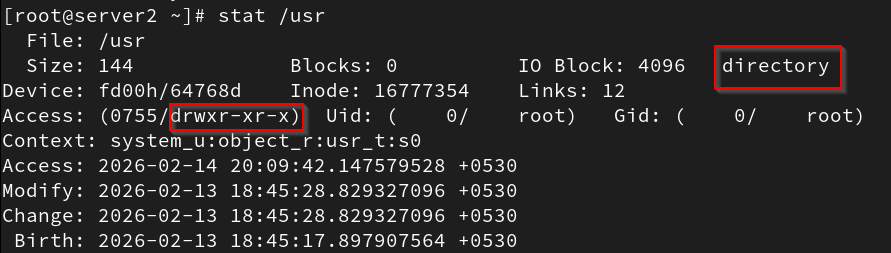
Block and character special device files:
- What are Device files?
Each piece of hardware in the system has an associated file in the /dev directory that is used by the system to communicate with that device. This type of file is called a
device file. - Types of device files:
- Block → On the initial with the letter
bwe can distinguish it’sBlockdevice file.
- Character/ raw → On the initial with the letter
cwe can distinguish it’scharacterdevice file.
- Block → On the initial with the letter
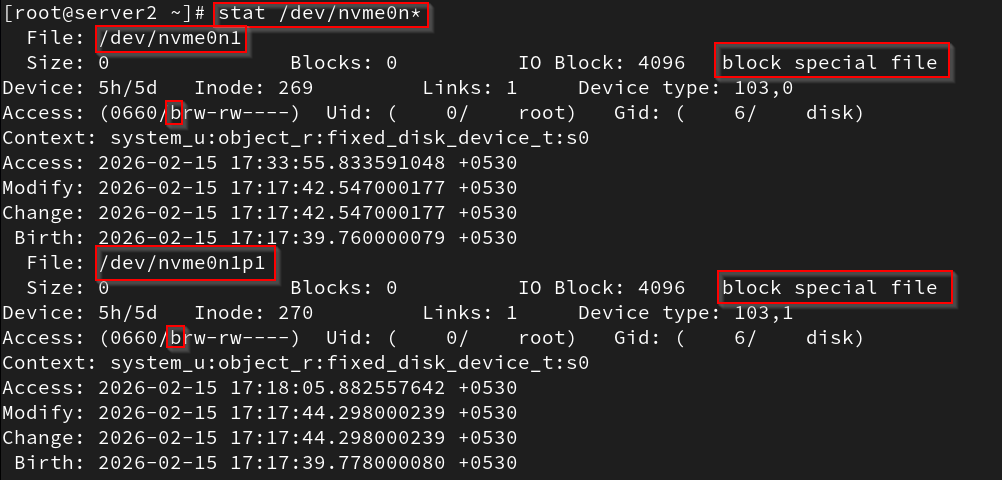
filecommand on both of the directories →/dev/consoleand/dev/nvme0n*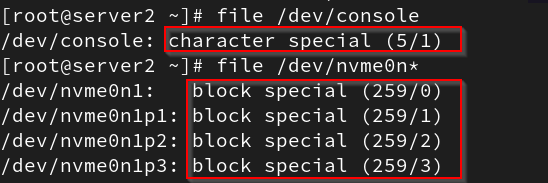
statcommand on both of the directories →/dev/consoleand/dev/nvme0n*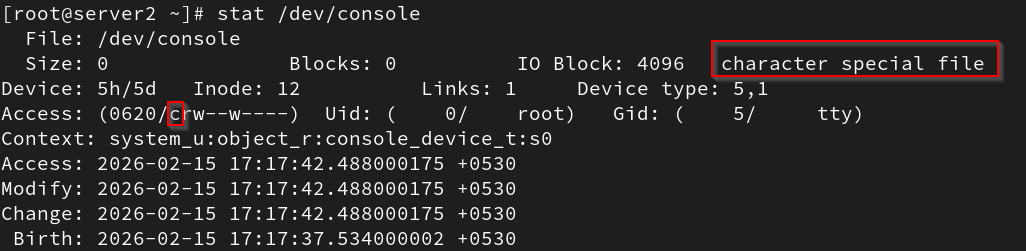
Important concepts related to device files(PAY ATTENTION):
Concept of major number:
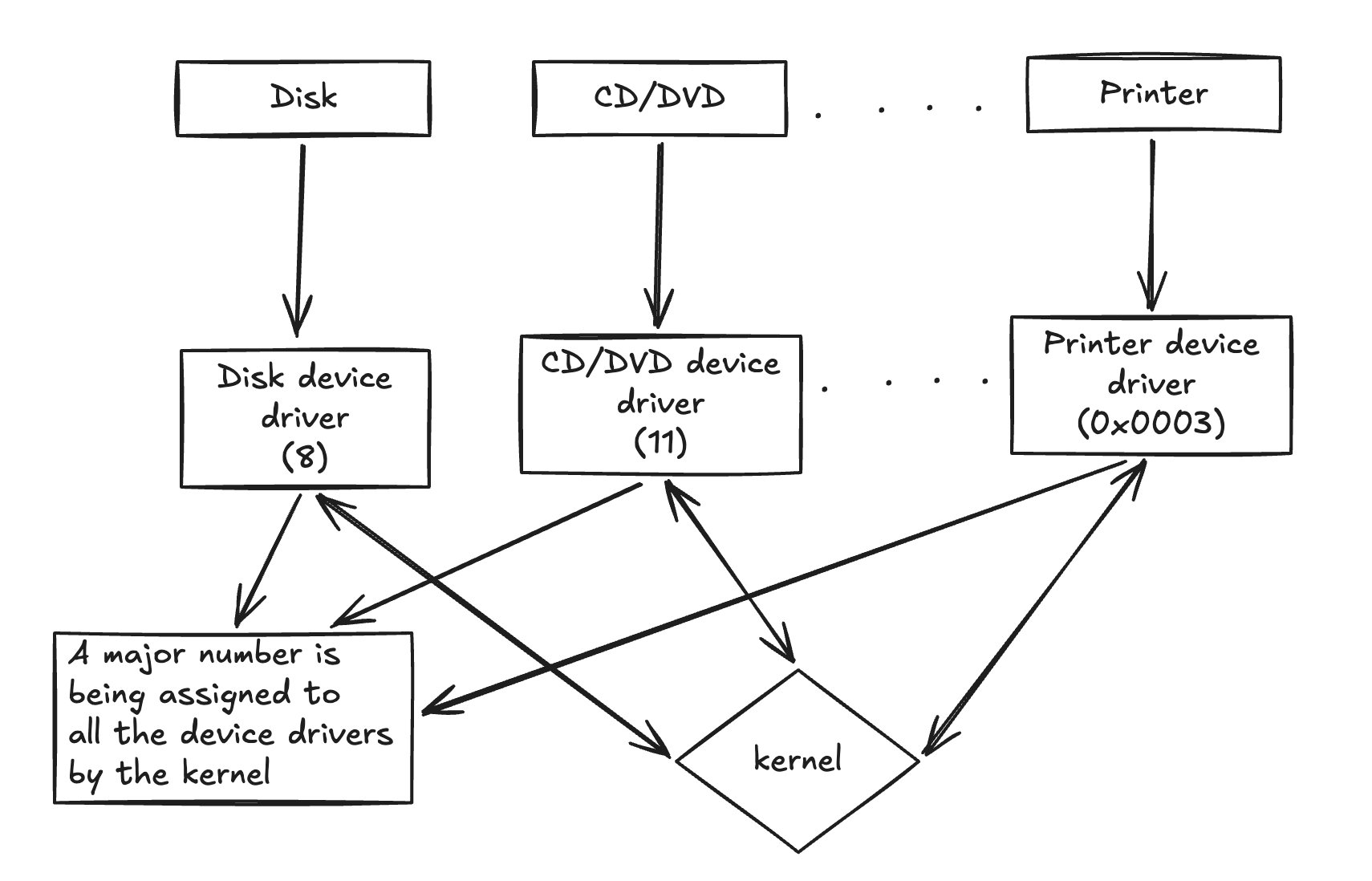 Let’s elaborate the picture
- Every hardware device such as a
disk, CD/DVD, printer, and terminalhas an associateddevice driverloaded in the kernel. The kernel communicates with hardware devices through their respective device drivers. Each device driver is assigned a unique number calledthe major number, which the kernel uses to recognize its type.
Concept of Minor number:
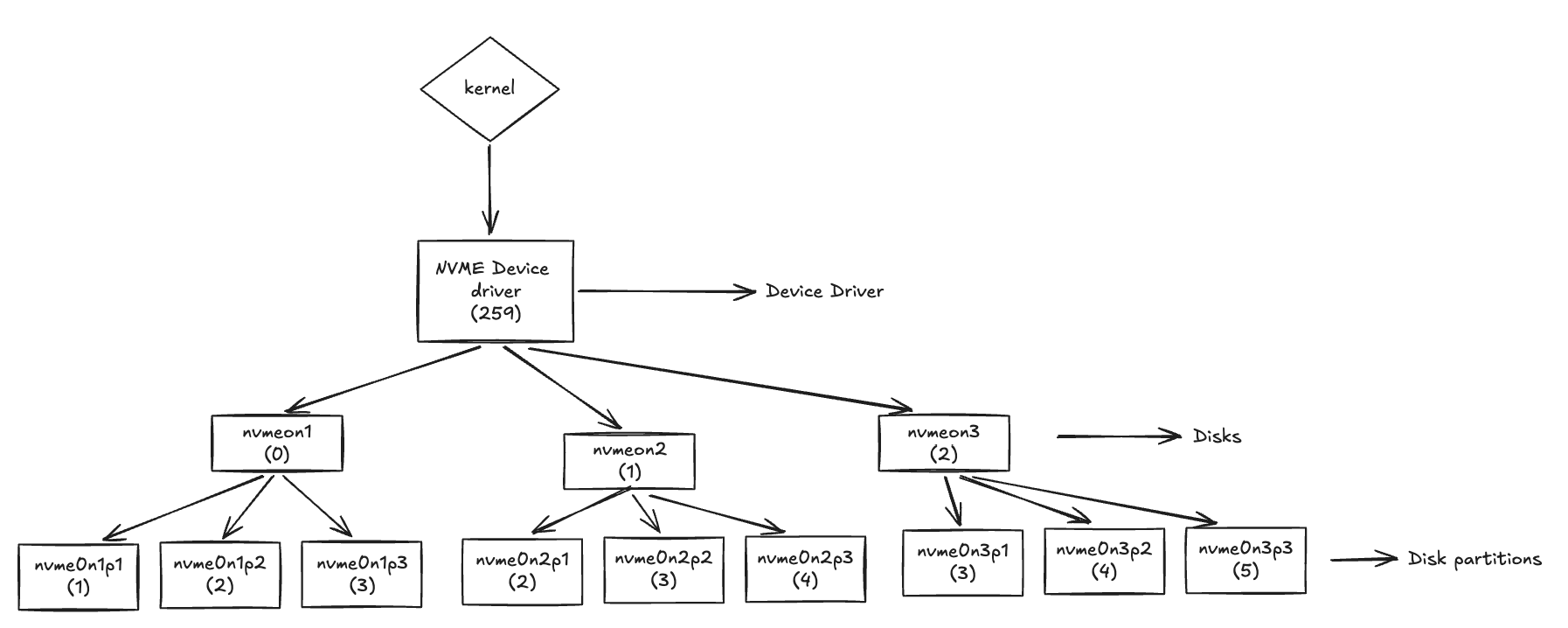
- There may be more than one instance of the same device type in the system. In that case, the same driver is used to control all those instances. For example, ==SATA device driver controls all SATA hard disks and CD/DVD drives==. The kernel in this situation allots a minor number to each individual device within that device driver category to identify it as a unique device. This scheme applies to disk partitions as well. In short, a major number points to the device driver, and a minor number points to a unique device or partition that the device driver controls.
Practical example of major and minor numbers:
- Previously when we used the
filecommand andls -lon/dev/consoleand/dev/nvme0n*directories, we will analyze them again and identify where actually it shows the major and minor numbers:ls -loutput analyze:
- The major number
5is forcharacter device filesand it is reserved fortty and console related devices./dev/tty- (5,0)/dev/console- (5,1)/dev/ptmx- (5,2)
- The major number
259representsBlock extended device filesand it is dynamically assigned toNVME devices.
- The major number
EXTRA MAJOR NUMBERS(for knowledge):
- Major number
8represents theblock device driverforSATAdisks. - Major number
253denotes thedriver for device mapper. - Major number
11representsoptical devices.
Symbolic links/ soft link/ symlink:
- It is considered a shortcut to another file or directory.
- When we will perform
ls -l/ longlisting of files/directories, the initial letter will belfor asymlinkplus an arrow will be pointing to the target link. fileandstatcommand for additional information:

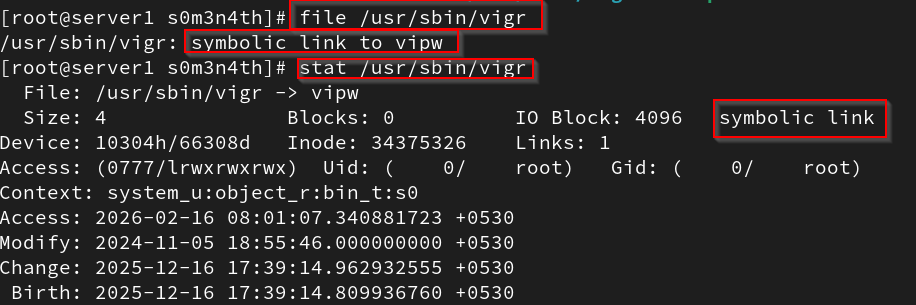
Compression and archiving:
- What is compression?
- It is the process of grouping multiple files and then compress them together to save space.
- What is archiving?
- They contain single file that further contains one or more compressed/uncompressed files along with metadata like folder structures.
- The archiving technique mostly used for long-term backups and storages etc.
Using gzip and gunzip:
- The
gzipcommand is used to create a compressed file of each of the specified files and it adds the.gzextension to each file for identification.- We will compress and decompress the file
fstab→- First copy the file from
/etc/fstabto thecurrent working directory - Now use the
 gzipcommand to compress the file →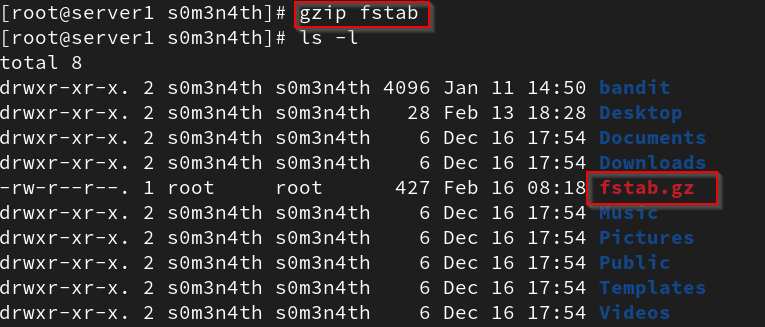 - Check more info about the compressed file using the following command:
 gzip -l fstab.gz
- Decompress the file using the command
gunzip→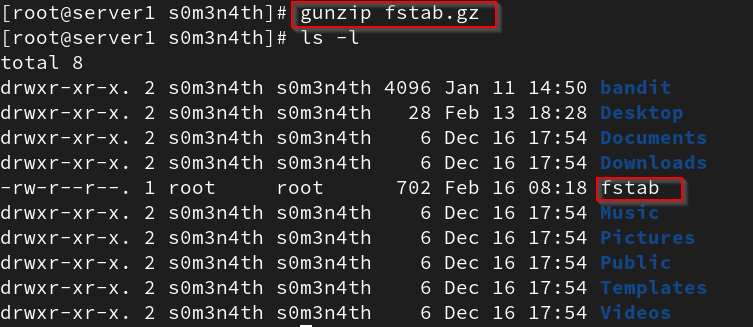
- First copy the file from
- We will compress and decompress the file
Using bzip2 and bunzip2:
- They are same as
gzip and gunzip. Insteadbzip2compress a file with the extension.bz2bzip2 :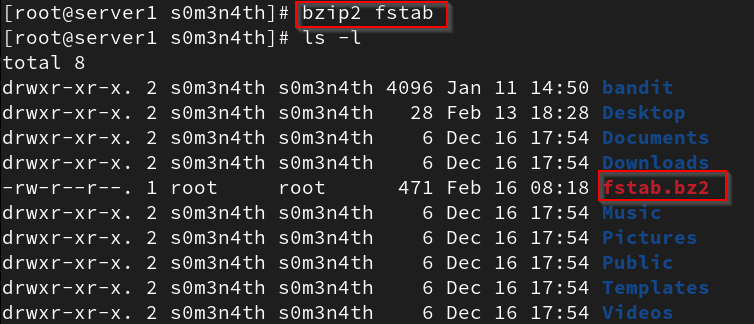
bunzip2 :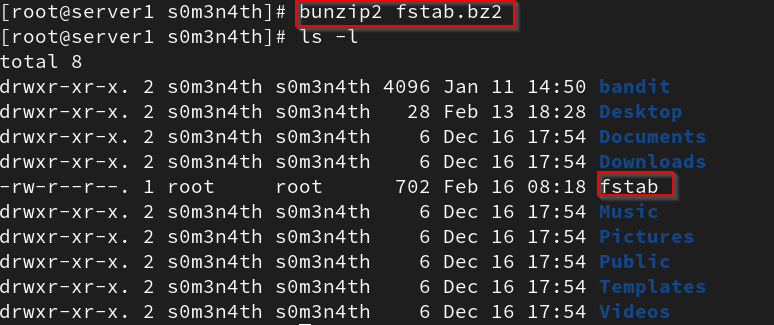
Using tar:
- The
tar (tape archive)command is used to create, append, update, list, and extract files or an entire directory tree to and from a single file, which is called a tarball or tarfile. This command can be instructed to also compress the tarball after it has been created. Commands:
- To create a tarball called
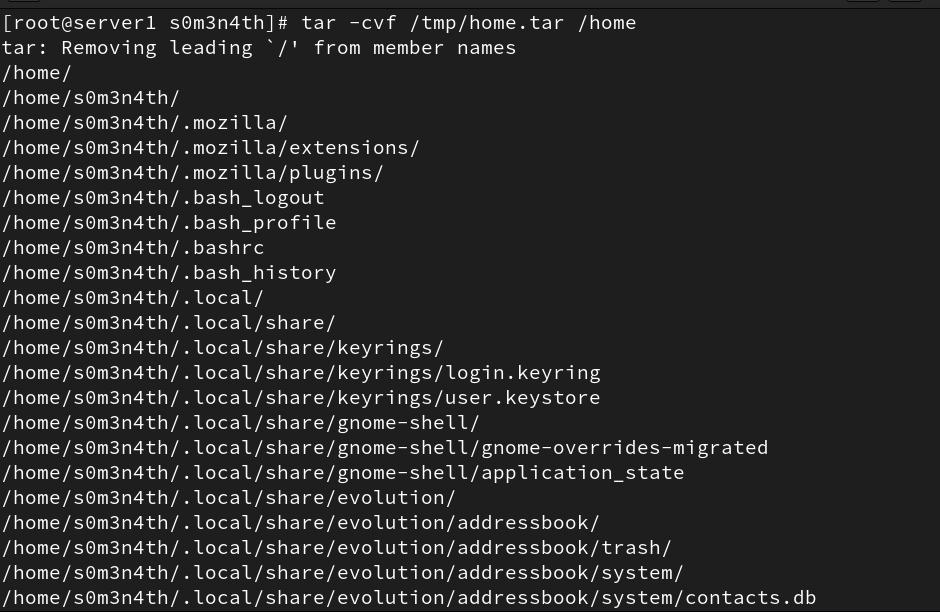
/tmp/home.tarof the entire/homedirectory, use the-voption forverbosityand the-foption to specifythe name of the archive filewith the command,-ccreates a tarball.
tar -cvf /tmp/home.tar /home
 2. To create a
 tarball of selected files:
tar -cvf /tmp/files.tar /etc/passwd /etc/yum.conf
 3. To append files located in the
 /etc/yum.repos.d directory to the existing tarball /tmp/files.tar:
tar -rvf /tmp/files.tar /etc/yum.repos.d
 4. To list what files are included in the
 files.tar tarball:
tar -tvf /tmp/files.tar
 5. To extract the files from the
 tarball
tar -xf /tmp/files.tar
- tar also supports options to directly compress the target file while being archived using the
gzip or bzip2command:
| option | Description |
|---|---|
| -j | Compress a tarball with bzip2 |
| -z | Compresses a tarball with gzip |
Note
Archiving and compression are tasks usually done together to produce smaller archive files.