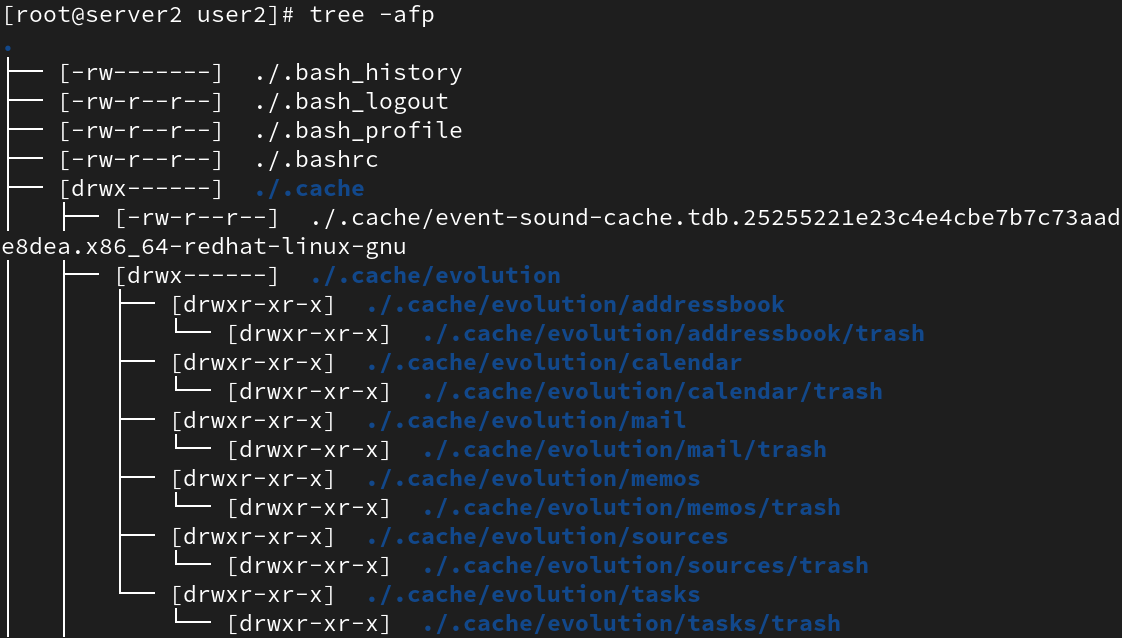
pwd(Present working Directory):
- It shows the a user’s current working directory.
pwdalways returns the absolute path.
Navigating directories:
Absolute path:It is the full path starting from the top level path which is/to my current working directory. Theabsolute pathwill always start with/at the beginning.Relative path:It is not a full path but rather a path which depicts the location relative to our own current working directory.- For example: we are in
/home/user1directory. To move upwards either we can write using therelative pathlike this →cd Desktop/, or we can write usingabsolute pathlike this →cd /home/user1/Desktop/

To go back to home directory:
- Use the command
cdorcd ~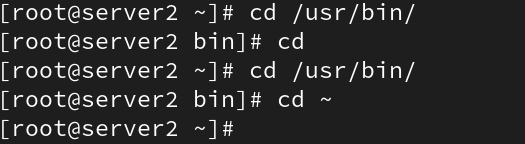
Switching between current and previous directories:
- Command →
cd -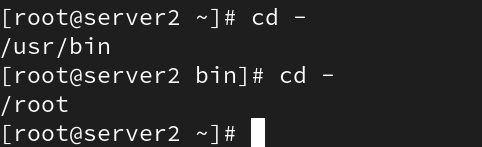
Viewing directory hierarchy:
tree command:
tree -a→ Includes hidden files in the output.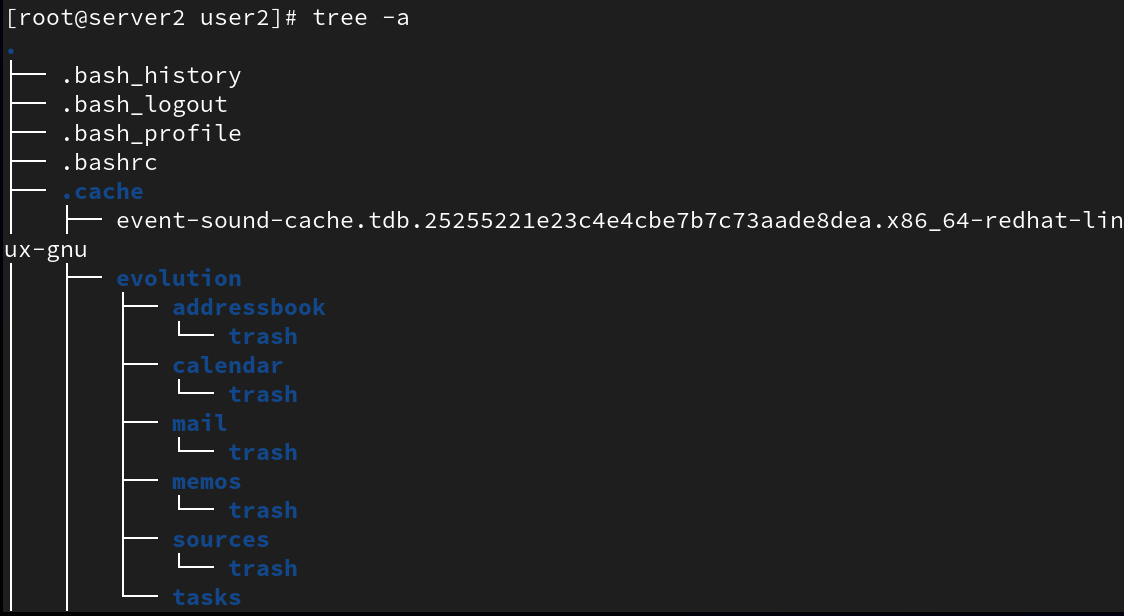
tree -d→ excludes files from the output.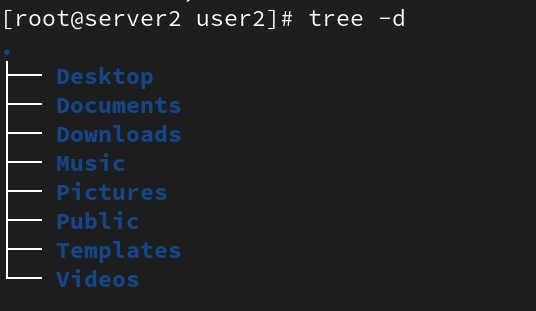
tree -h→ Displays file size in a human readable format.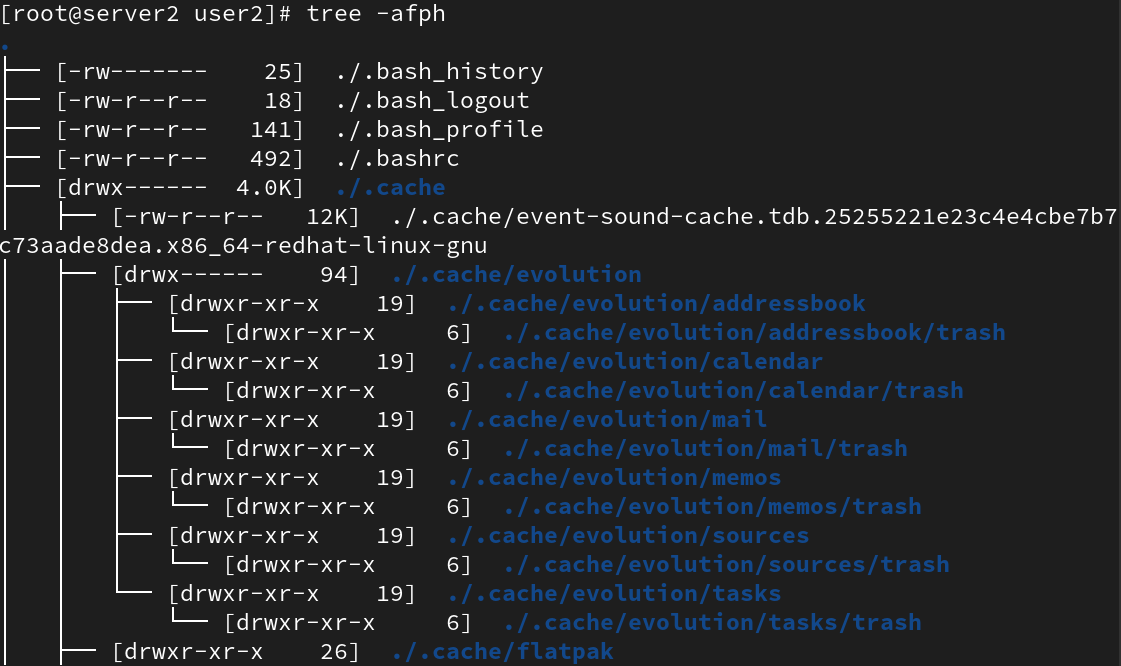
tree -f→ prints the full path of each file.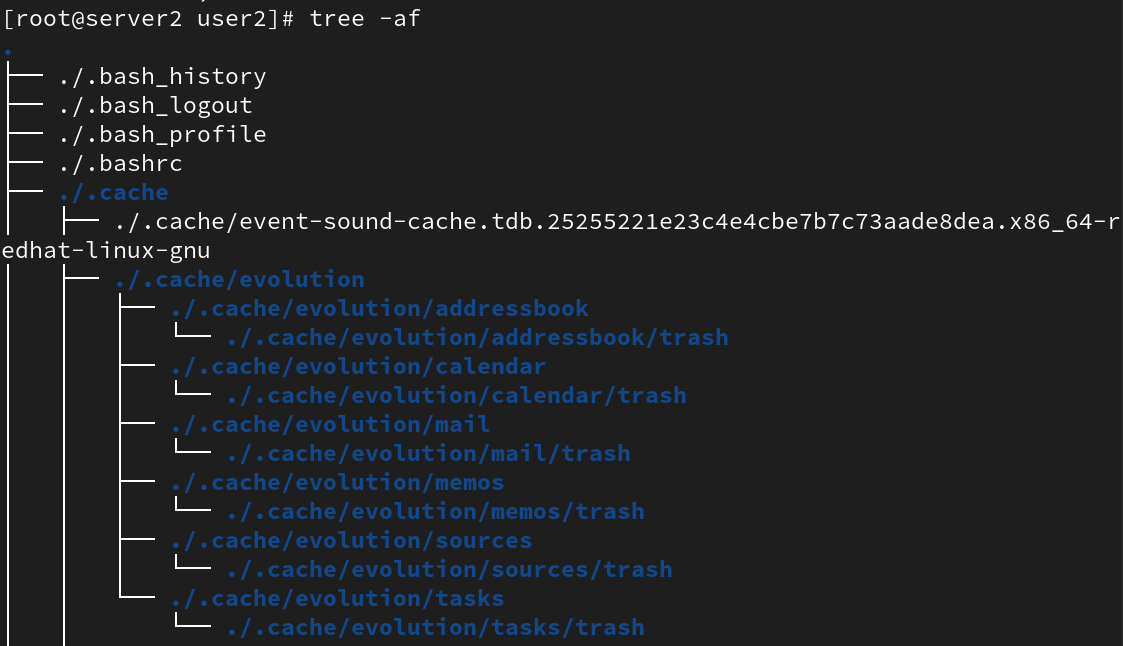
tree -p→ prints file permissions in the output.