- Installing
SNMPfeature on windows server 2019: Using Server Manager: - Open Server Manager.
- Click Manage in the top-right corner and select Add Roles and Features.
- Click Next until you reach the Features section.
- Scroll down and check the box for Simple Network Management Protocol (SNMP).
- Click Add Features in the pop-up window if prompted.
- Click Next and then Install
Using PowerShell :
- Open PowerShell as an Administrator.
- Run the following command:
Install-WindowsFeature SNMP-Service -IncludeManagementTools

Misconfiguration:
Configure Vulnerable Settings
The primary vulnerability in older SNMP versions (v1 and v2c) comes from using guessable community strings, which act like plaintext passwords. The most common default string is “public”.
- Press
Win + R, typeservices.msc, and press Enter.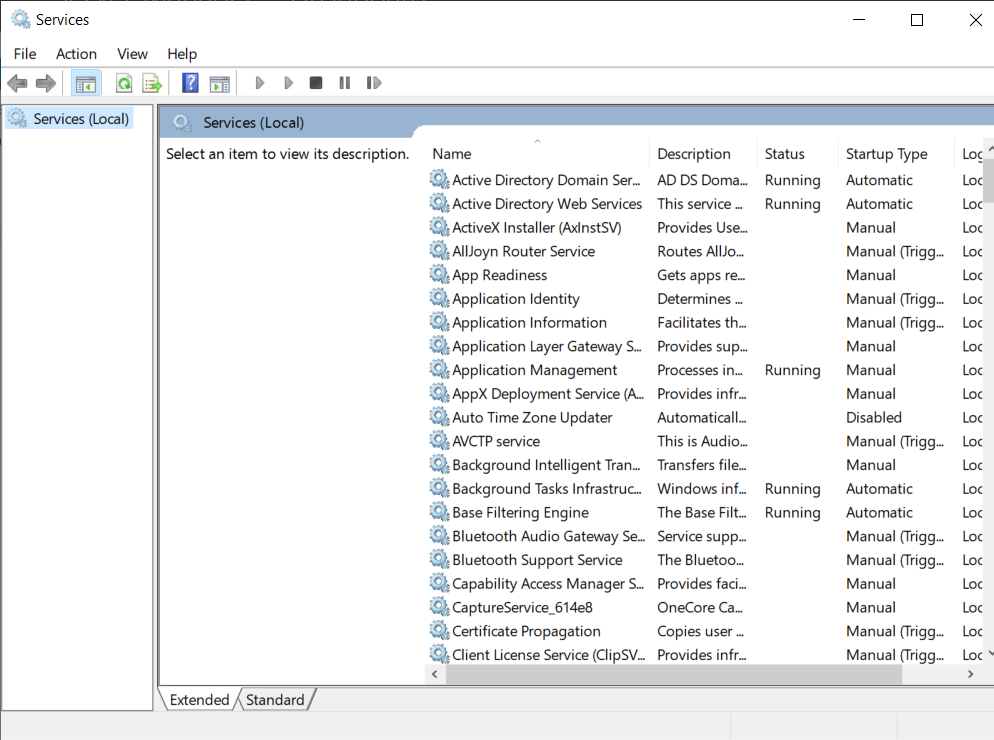
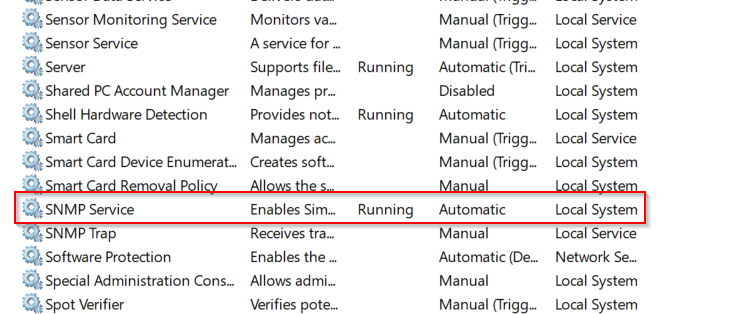
- Find the SNMP Service in the list, right-click it, and select Properties.
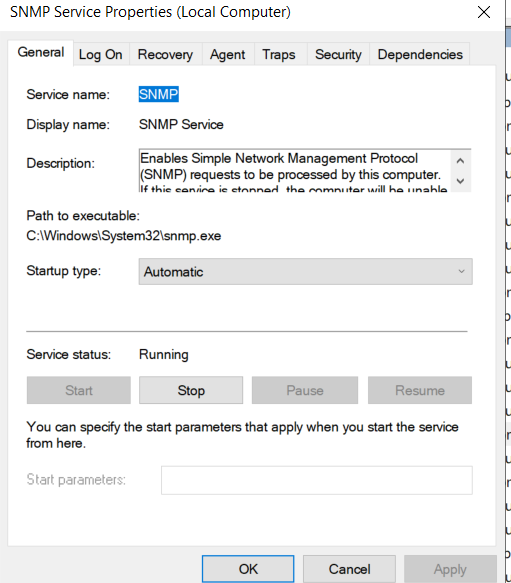
- Go to the Security tab. This is where you’ll set the weak configurations.
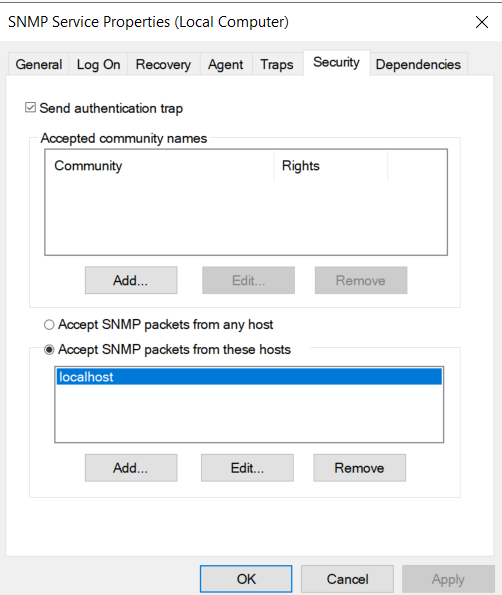
- Set a Weak Community String:
- Under the Accepted community names section, click Add.
- Set the Community rights to READ ONLY (or “READ WRITE” for a more critical vulnerability).
- In the Community Name box, type
public.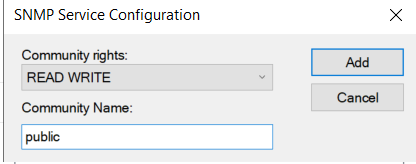
- Click Add.
- Allow Access from Any Host:
- Below the community names, select the radio button for Accept SNMP packets from any host.
- Security Note: In a real environment, this is a major security risk. It allows any device on the network to query your server’s SNMP data. For secure setups, you would always choose “Accept SNMP packets from these hosts” and specify the IP address of your monitoring server.
- Click Apply and then OK.
- Restart the Service:
- Right-click the SNMP Service again in the
services.mscwindow and select Restart to apply all your changes.
- Right-click the SNMP Service again in the
Your server is now configured with the notoriously insecure “public” community string, accessible from any host on the network. This setup is ideal for testing vulnerability scanners (like Nmap or Nessus) to see how they detect this misconfiguration.