It is not recommended to add local accounts into Domain Controllers, they should be on workstations only. Use your windows machines, not the server. Steps should be similar as this practical.
- By default on
windows server 2019winRMcomes enabled. - We can verify through
server manageras well asCLI, let’s verify:SERVER MANAGER: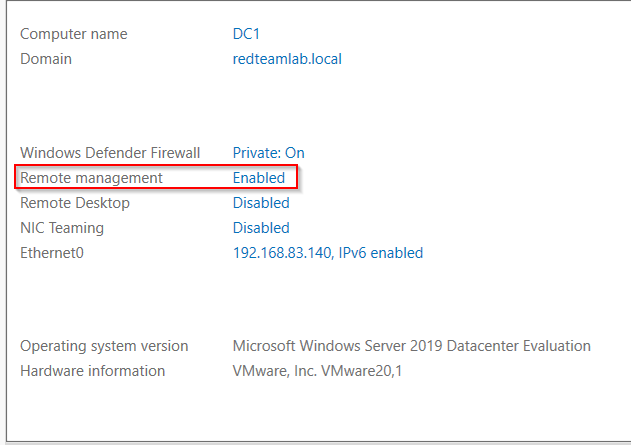
POWERSHELL:
- Default port for
WINRMis5985
# command
netstat -ano | findstr "5985"
- The WinRM service starts automatically on Windows Server 2008, and later. On earlier versions of Windows (client or server), you need to start the service manually.
winrm hardening:
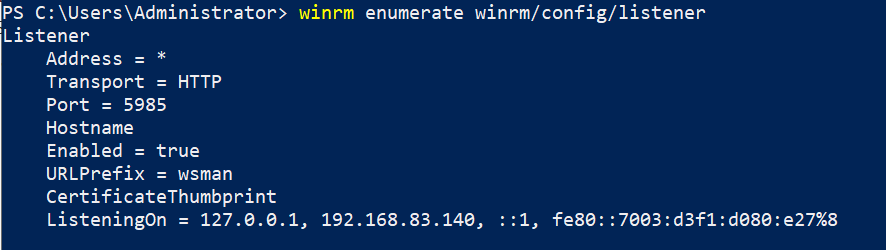
- By default, no WinRM listener is configured. Even if the WinRM service is running, WS-Management protocol messages that request data can’t be received or sent.
- Internet Connection Firewall (ICF) blocks access to ports.
COMMANDS:
winrm enumerate winrm/config/listener
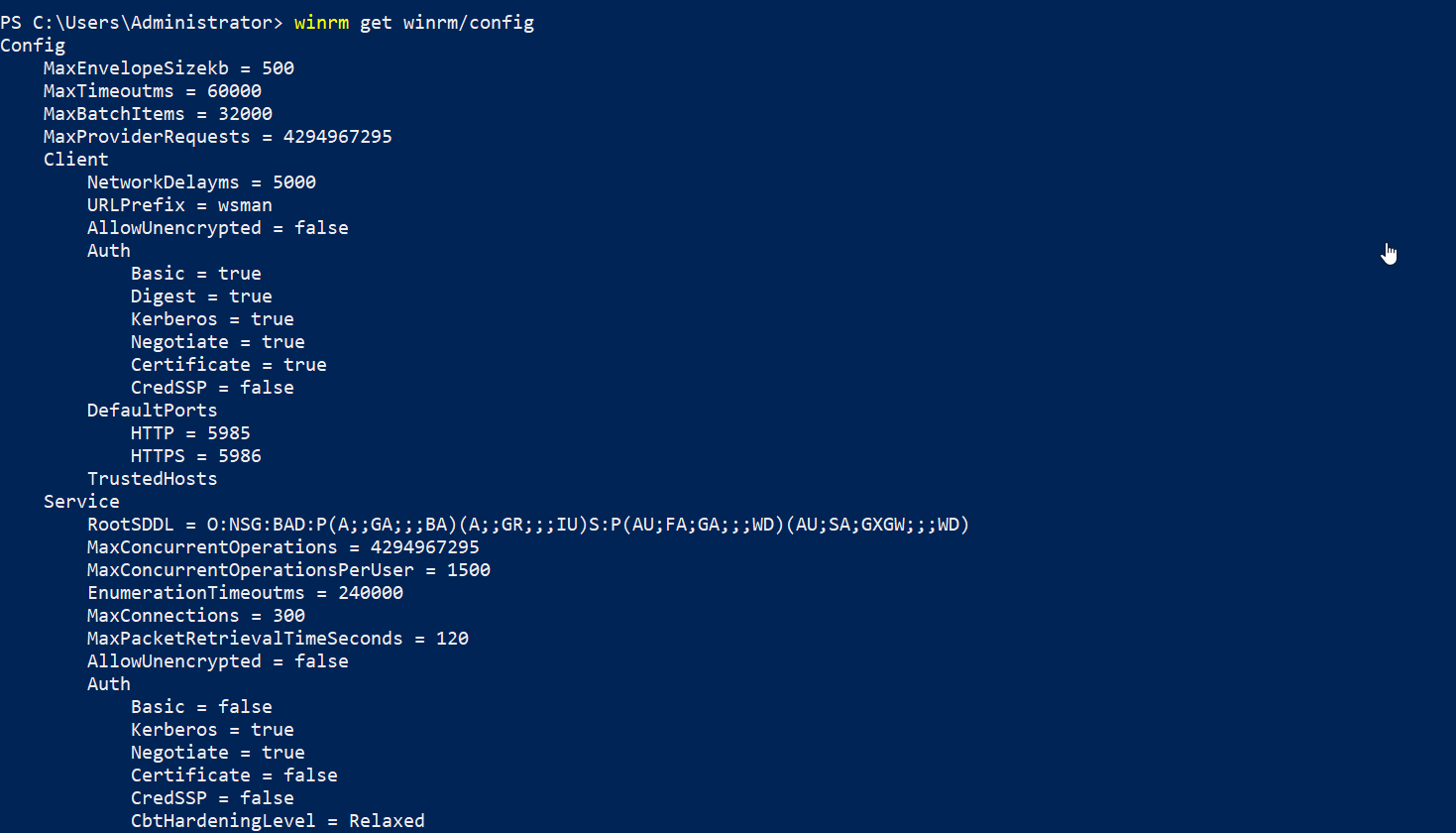
winrm get winrm/config
winrm quickconfig # winrm qc (in short)

winrm misconfigs for exploitation:
COMMANDS:
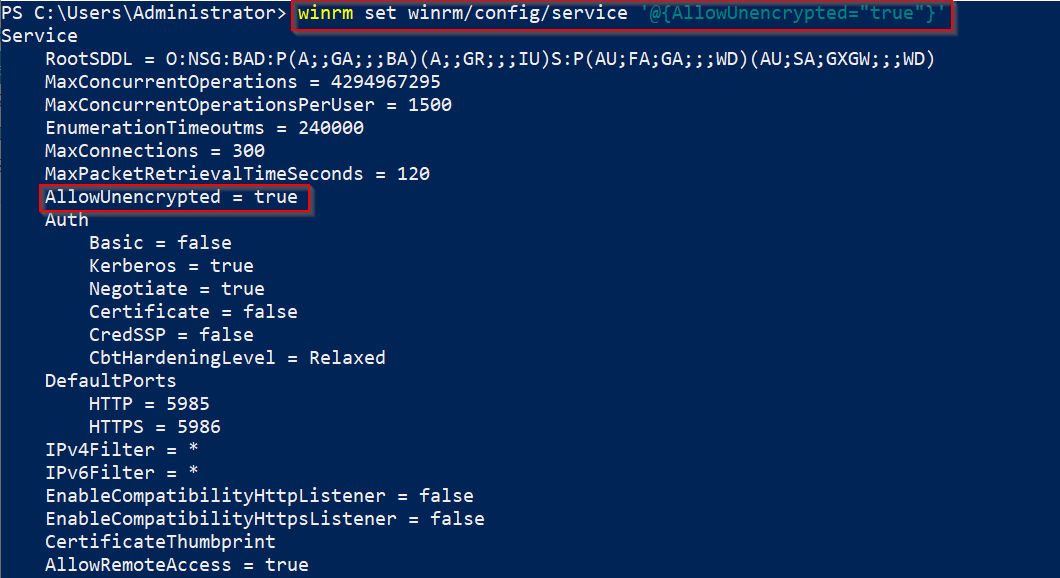
- Allowing unencrypted
httptraffic:
winrm set winrm/config/service '@{AllowUnencrypted="true"}'
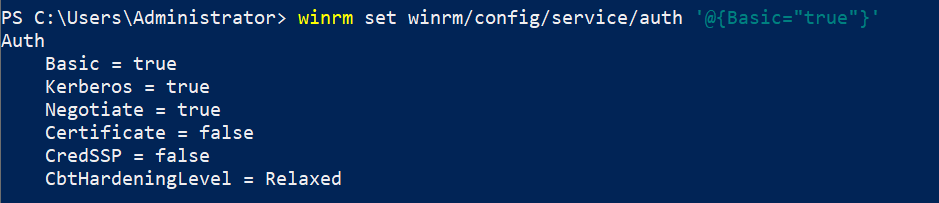
 2. Enabling basic authentication on the server:
winrm set winrm/config/service/auth '@{Basic="true"}'
 3. Adding a local user
 sysadmin into the group of winrm
4. But first we need to create that group if it’s not been created automatically:
net localgroup "WinRMRemoteWMIUsers__" /add /comment:"Users authorized for remote WMI and WinRM."
then add the user
net localgroup "WinRMRemoteWMIUsers__" "TheUserName" /add
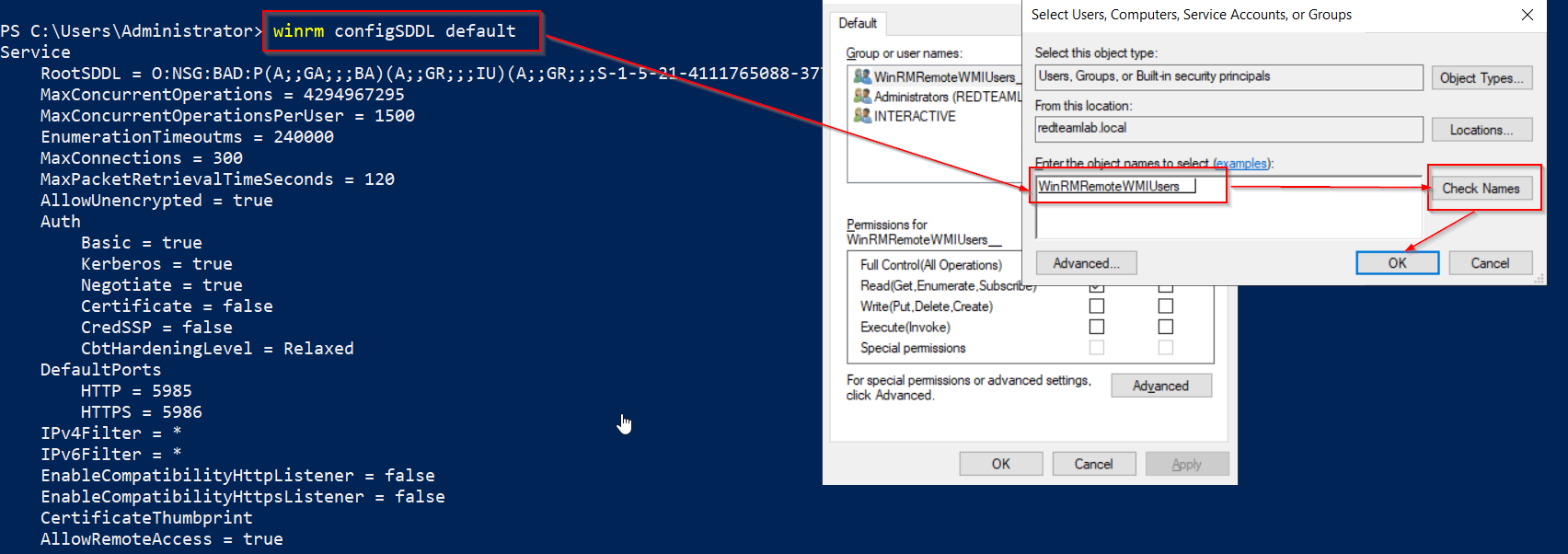
 5. Now we need to configure that the group is having proper permissions and ACLs for remote connections, follow the steps:
winrm configSDDL default
 6. To confirm the group is added type this command in cmd:
(Get-PSSessionConfiguration -Name "Microsoft.PowerShell").Permission

IF THE GROUP ALREADY EXISTS, LIKE IN MY CASE IT IS, then follow the steps:

net localgroup "Remote Management Users" "sysadmin" /add