OpenSSHis the open-source version of the Secure Shell (SSH) tools used by administrators of Linux and other non-Windows for cross-platform management of remote systems. Beginning with Windows 10 build 1809 and Windows Server 2019, OpenSSH is available as a feature on demand.- OpenSSH for Windows has the following commands built in:
sshis the SSH client component that runs on the user’s local systemsshdis the SSH server component that must be running on the system being managed remotelyssh-keygengenerates, manages and converts authentication keys for SSHssh-agentstores private keys used for public key authenticationssh-addadds private keys to the list allowed by the serverssh-keyscanaids in collecting the public SSH host keys from hostssftpis the service that provides the Secure File Transfer Protocol, and runs over SSHscpis a file copy utility that runs on SSH
Prerequisites check:
To validate your environment, open an elevated PowerShell session and do the following:
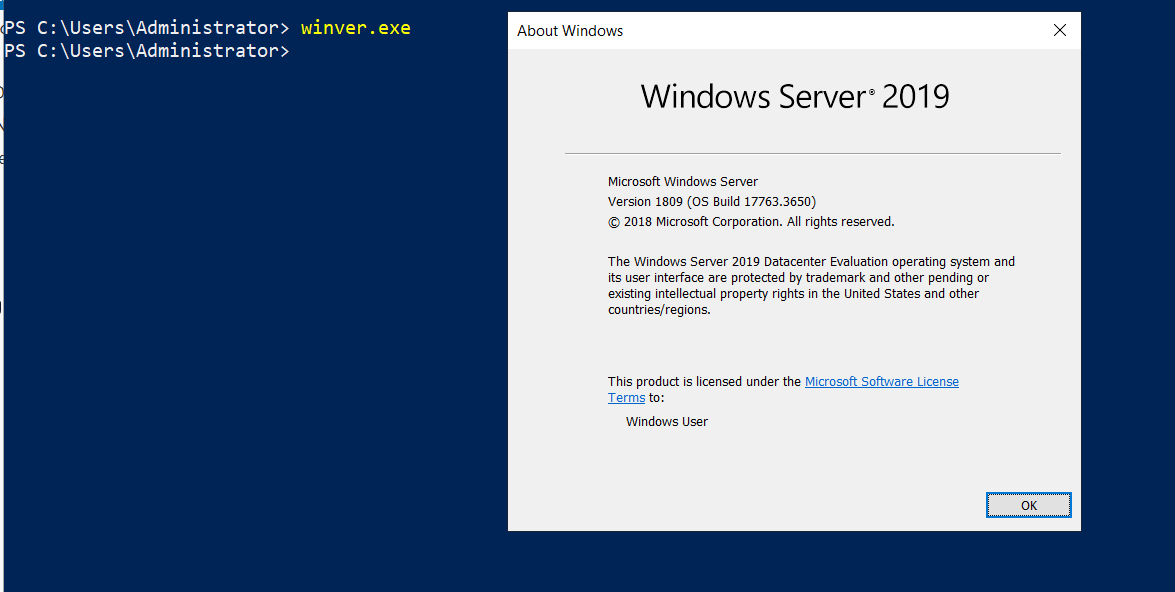
- Enter winver.exe and press enter to see the version details for your Windows device.
- Run
$PSVersionTable.PSVersion. Verify your major version is at least 5, and your minor version at least 1. Learn more about installing PowerShell on Windows.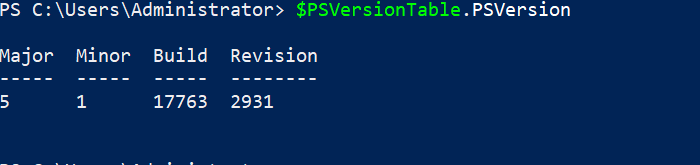
- To check when you’re an administrator, run the following command. The output shows
Truewhen you’re a member of the built-in Administrators group.
(New-Object Security.Principal.WindowsPrincipal([Security.Principal.WindowsIdentity]::GetCurrent())).IsInRole([Security.Principal.WindowsBuiltInRole]::Administrator)

Installing OpenSSH server:
- Open windows server 2019, Run powershell as administrator
- Checking availability of OpenSSH:
Get-WindowsCapability -Online | Where-Object Name -like 'OpenSSH*'
 3. Installing Open ssh server:
Add-WindowsCapability -Online -Name OpenSSH.Server~~~~0.0.1.0
 4. To start and configure OpenSSH Server for initial use, open an elevated PowerShell prompt (right-click, then select Run as an administrator), then run the following commands to start the
 sshd service:
# Start the sshd service
Start-Service sshd

# OPTIONAL but recommended:
Set-Service -Name sshd -StartupType 'Automatic'

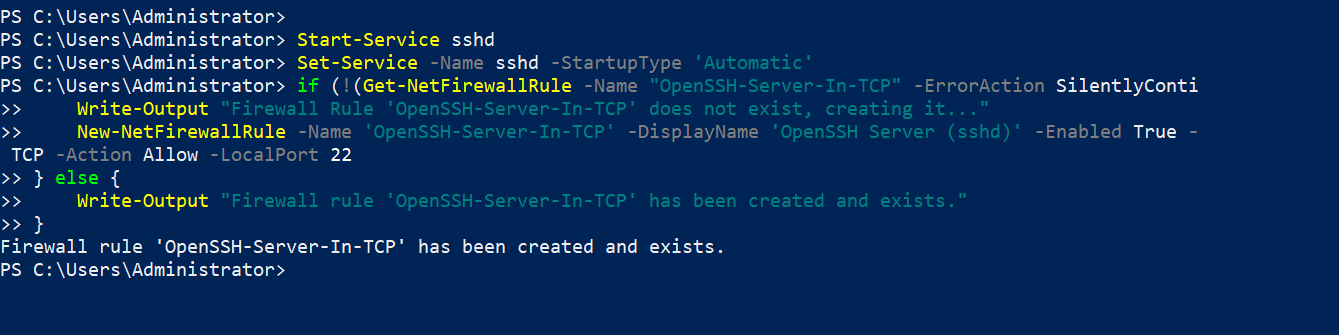
# Confirm the Firewall rule is configured. It should be created automatically by setup. Run the following to verify
if (!(Get-NetFirewallRule -Name "OpenSSH-Server-In-TCP" -ErrorAction SilentlyContinue)) {
    Write-Output "Firewall Rule 'OpenSSH-Server-In-TCP' does not exist, creating it..."
    New-NetFirewallRule -Name 'OpenSSH-Server-In-TCP' -DisplayName 'OpenSSH Server (sshd)' -Enabled True -Direction Inbound -Protocol TCP -Action Allow -LocalPort 22
} else {
    Write-Output "Firewall rule 'OpenSSH-Server-In-TCP' has been created and exists."
}
Openssh server misconfigs:
- We need to confirm that
password authenticationis enabled:
notepad C:\ProgramData\ssh\sshd_config
- Look for the line
#PasswordAuthentication yes. Remove the # at the beginning to uncomment it. If the line says PasswordAuthentication no, change it to yes.
- Restart the
sshd service
Restart-Service sshd
Creating a vulnerable user:
- In the same PowerShell or a Command Prompt (as Administrator), run the following command. We’ll create a user named
victimwith the passwordPassword123.
net user victim Password123 /add
Add another user
New-LocalUser -Name "sysadmin" -Password (ConvertTo-SecureString "Password123" -AsPlainText -Force)

- Now let’s try to connect using our kali machine using the command:
ssh USERNAME@WINDOWS_SERVER_IP
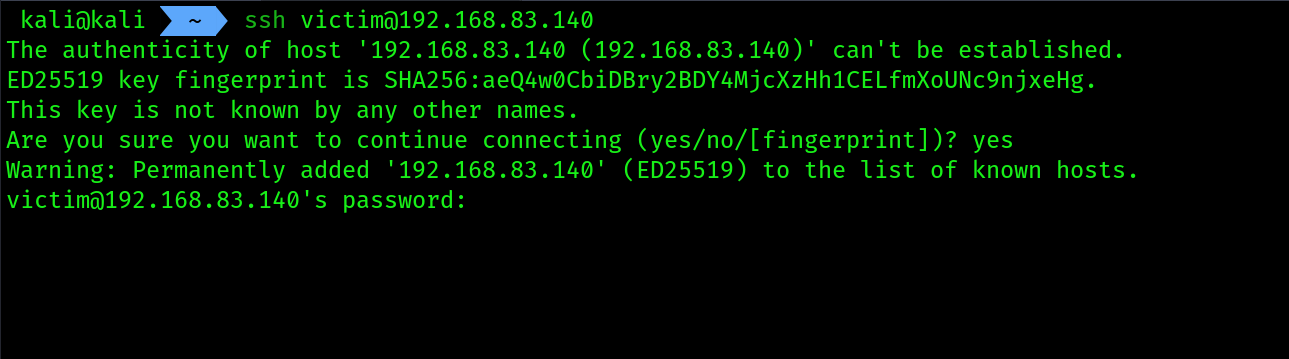
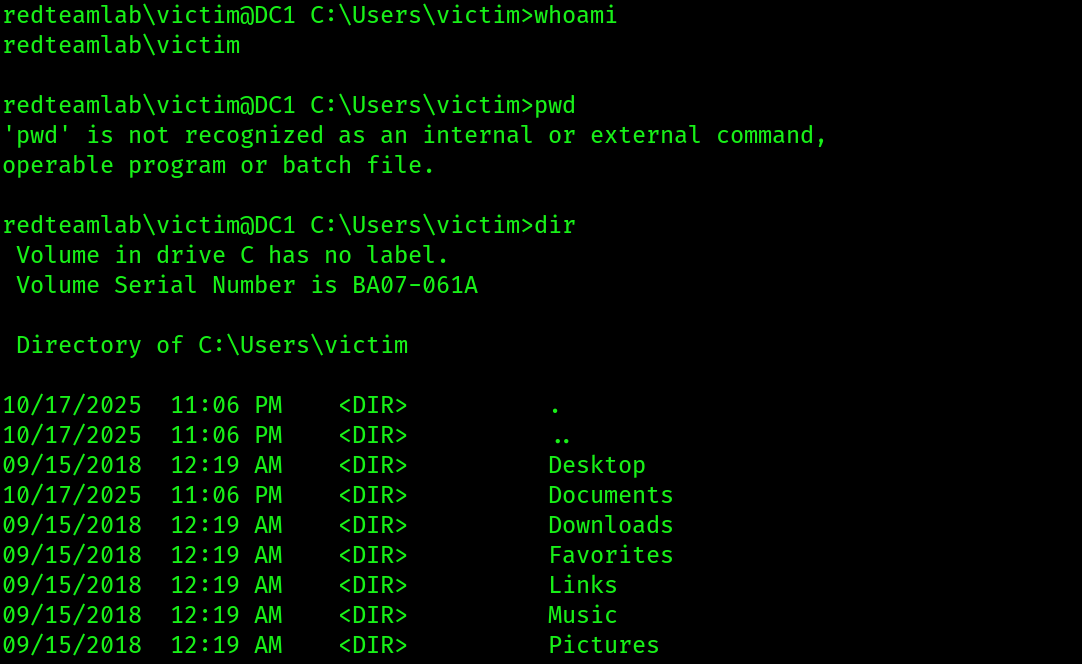 OUR VULNERABLE SERVER IS SETUP TO PERFORM SOME ATTACKS, LET’S DO IT ON THE NEXT SECTION.
Checking logs and setting up open shh log facility:
- By default the logs will be shown for ssh connections on the
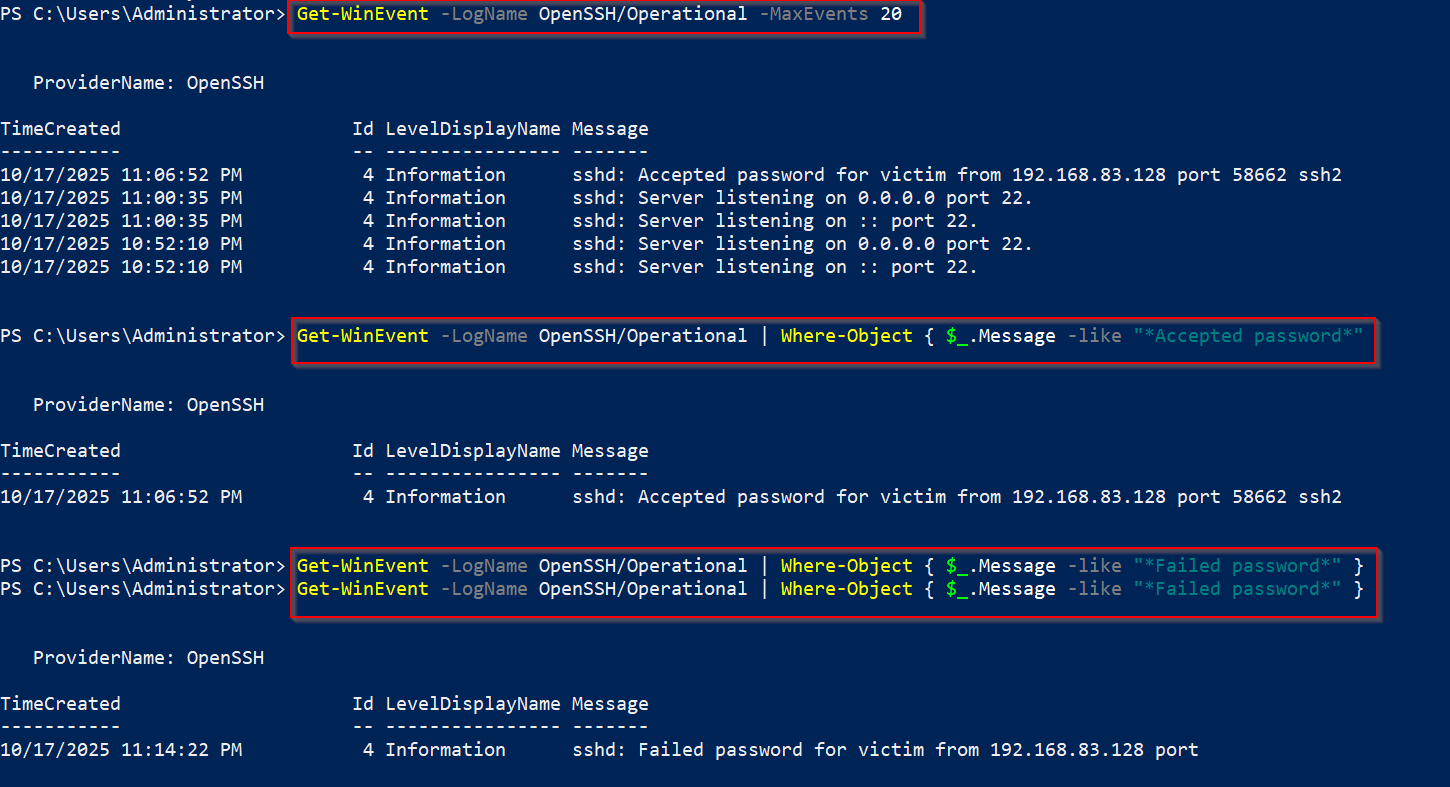
Event Viewer, let’s check them through some powershell commands:
# To see the last 20 log entries:
Get-WinEvent -LogName OpenSSH/Operational -MaxEvents 20

# To find only successful connections:
Get-WinEvent -LogName OpenSSH/Operational | Where-Object { $_.Message -like "*Accepted password*" }

# To find failed connections(brute-force scenario):
Get-WinEvent -LogName OpenSSH/Operational | Where-Object { $_.Message -like "*Failed password*" }
 2. Setting up
 sshd.log from sshd_config file:
3. Open the config file using notepad and uncomment these two options:
 4. Then set the
 SyslogFacility AUTH to SyslogFacility LOCAL0 , LogLevel INFO is fine, or you can set LogLevel DEBUG
5. Restart sshd service
Restart-Service sshd
- After doing that, logs would start appearing in
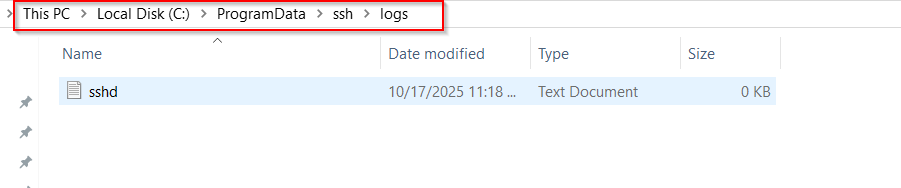
C:\ProgramData\ssh\logs\sshd.log